
Project icon
Recognize each project at a glance with a logo or custom initials and colors.
Give each project a recognizable identity so you can find the right work when switching projects and workspaces. Keep the initials hob creates from the project name, customize them, or use your own logo.
Choose a logo or initials
Setting a project icon
Open Settings → Project details and find Project logo. Select the avatar
to choose an SVG or PNG, or drop the file onto that card. The upload takes effect
immediately and saves a base icon.svg or icon.png in the project's .hob/
directory, regardless of the original filename.
To keep initials, choose Edit initials while no logo image is set. Enter up to three characters and choose background and text colors. The preview updates as you edit; Save applies the choice, while Cancel discards it. Reset clears the staged customization; select Save to return to automatic initials and colors.
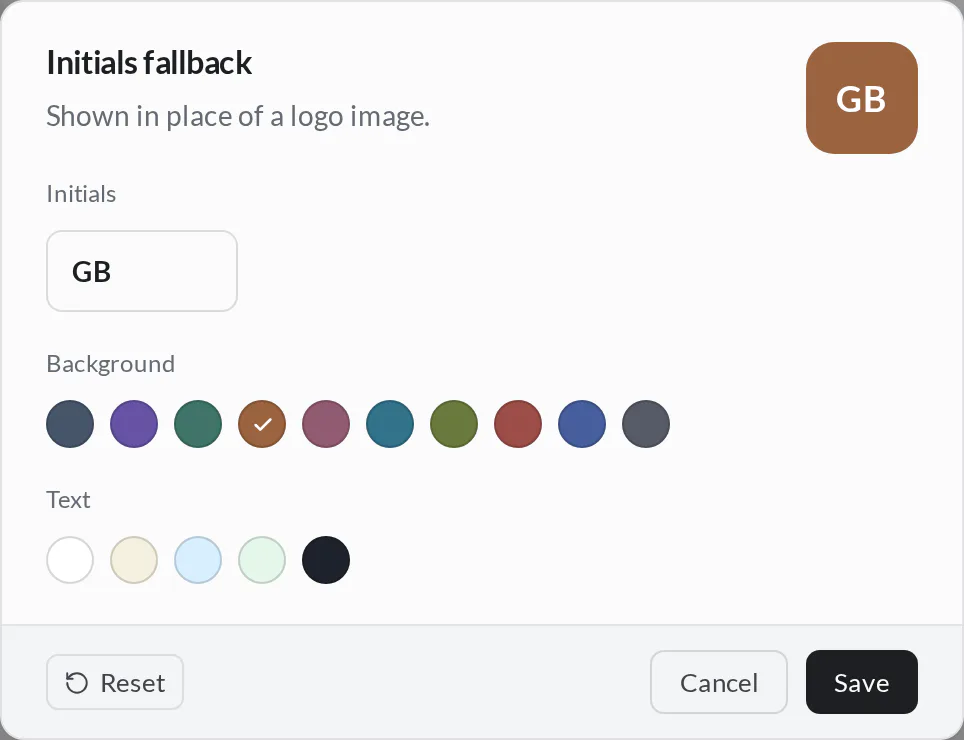
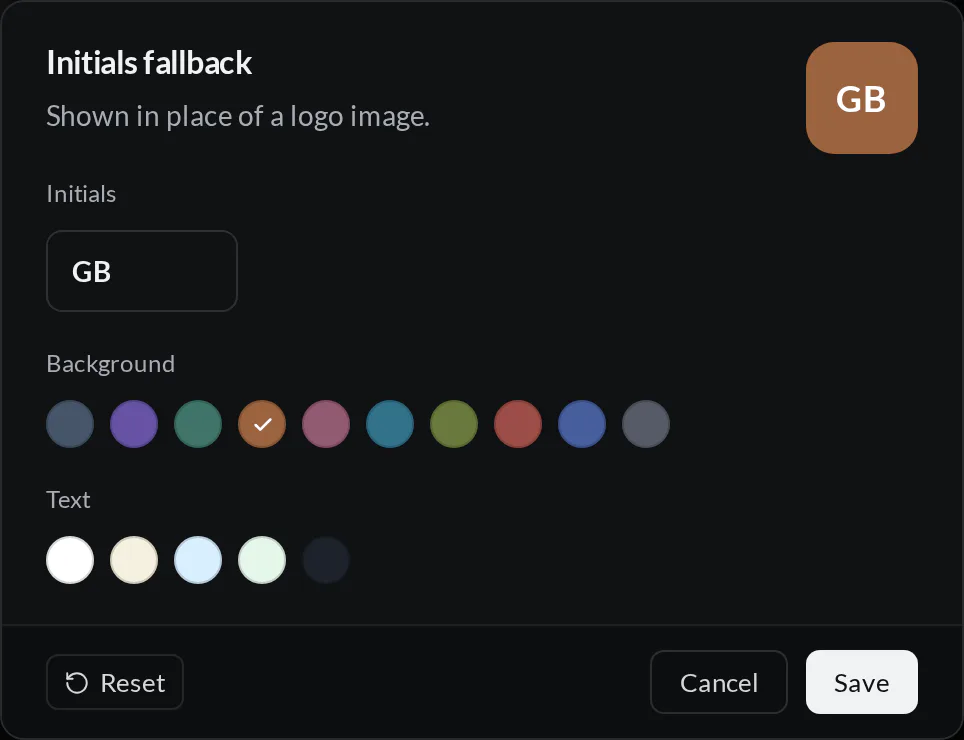
A logo image takes priority over initials. Remove the image first if you want to return to initials or edit their appearance. Initials and color choices are stored in hob's project preferences; logo images are files in the project.
Where the identity appears
The titlebar's project chip identifies the current project. The project rail uses the same avatar to distinguish open projects, and the project switcher uses it while you choose where to work next. Without a logo or a custom choice, hob uses initials derived from the project name and an automatic color.
For agents
Ask an agent to prepare a logo or a light/dark pair using the filenames above, then show the files in hob for review. Writing those icons changes the project directory, so include them in the diff and commit review like other project files.
Share icon files with a project
You can also put icons directly in .hob/ and commit them with the project so
teammates receive the same files. Use separate variants when a logo needs
different treatment against light and dark backgrounds.
Supported files
Filename in .hob/ | Used for |
|---|---|
icon.svg or icon.png | Base image, available in either scheme |
icon-dark.svg or icon-dark.png | Dark scheme |
icon-light.svg or icon-light.png | Light scheme |
hob checks the variant matching the active color scheme first, then the base files. Within either tier, SVG comes before PNG; dark mode therefore checks in this order:
icon-dark.svg → icon-dark.png → icon.svg → icon.pngA scheme-specific PNG wins over the base SVG. If no matching variant or base file exists, the project uses its initials.
Size limit
| Requirement | Behavior |
|---|---|
| Maximum size | 128 KB (131,072 bytes) per file. Oversized uploads are rejected, and oversized files cannot be loaded as icons. |
| Formats | SVG or PNG. Keep the design legible at the small sizes used in the rail and titlebar. |
| File location | .hob/ in the project directory. Uploads write a base filename; manually added files use the names above. |
| Changes | Edits, replacements, and removal are picked up without restarting hob. |
Updating an icon
Edit or replace a file in .hob/ to update that variant. Uploading through
Project logo replaces the base icon and removes all previous base and
scheme-specific icon files, so the uploaded image becomes the choice in both
schemes. To keep separate light/dark variants, maintain those files directly.
With a logo set, choose Remove in Project details and confirm to return to
initials. This deletes all recognized icon files from .hob/; it changes the
project's files, not just how they look on your screen. Commit that removal if
you want it reflected in other checkouts.