
Keyboard shortcuts
Start agents, move between tasks, and make hob's keyboard controls your own.
Find the key for the action you need, then make the binding your own. hob follows a two-axis convention: Alt handles navigation and pane controls;
Cmd/Ctrl opens tools and performs actions. Alt+1–Alt+9 selects a project;
adding Shift selects a workspace within it.
This page covers the desktop app and browser IDE. The shortcut editor shows your
actual bindings; the tables below show defaults. Cmd/Ctrl means Command on macOS
and Ctrl on Windows or Linux.
Start and steer
These are enough to begin working in the example project.
| I want to… | Shortcut |
|---|---|
| Start an agent | Alt+A (Alt+Shift+A to force a new pane) |
| Run a command in a terminal | Alt+T |
| Open a browser preview | Alt+U |
| Start another workspace | Alt+N |
| Jump to workspace 1–9 | Alt+Shift+1 … Alt+Shift+9 |
| Move focus to a neighboring pane | Alt+← Alt+→ Alt+↑ Alt+↓ |
| Find an action in Search hob | Cmd/Ctrl+K or Cmd/Ctrl+Shift+P |
| Find text in the current pane | Cmd/Ctrl+F |
| Close the current pane | Alt+W |
Customizing shortcuts
Open the shortcut editor with Cmd/Ctrl+/, or choose Shortcuts in Settings.
Search by action name or by its formatted binding. For example, search for
“New agent” to compare the normal and force-new actions.
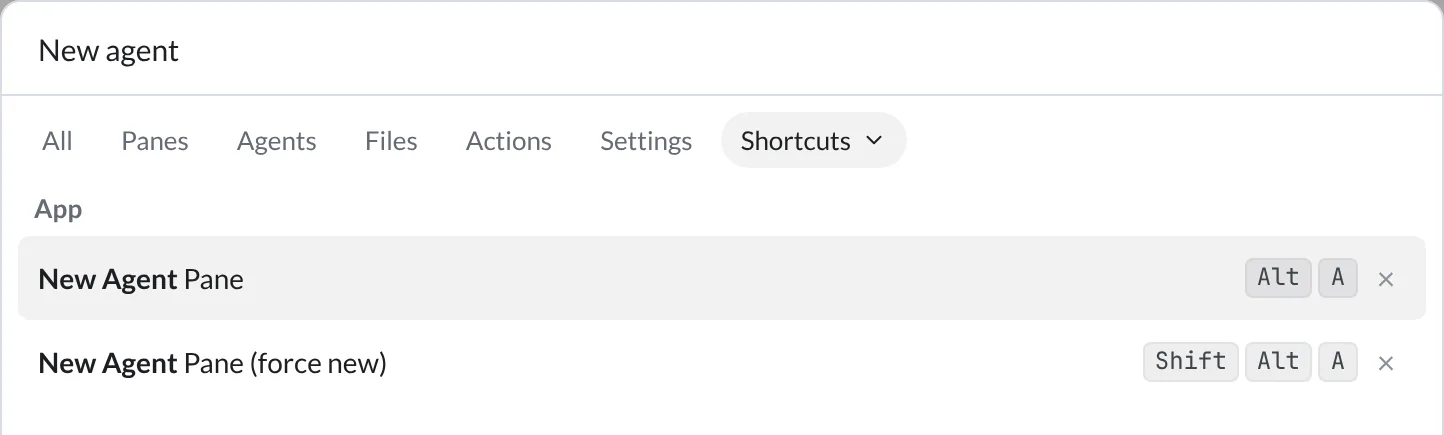
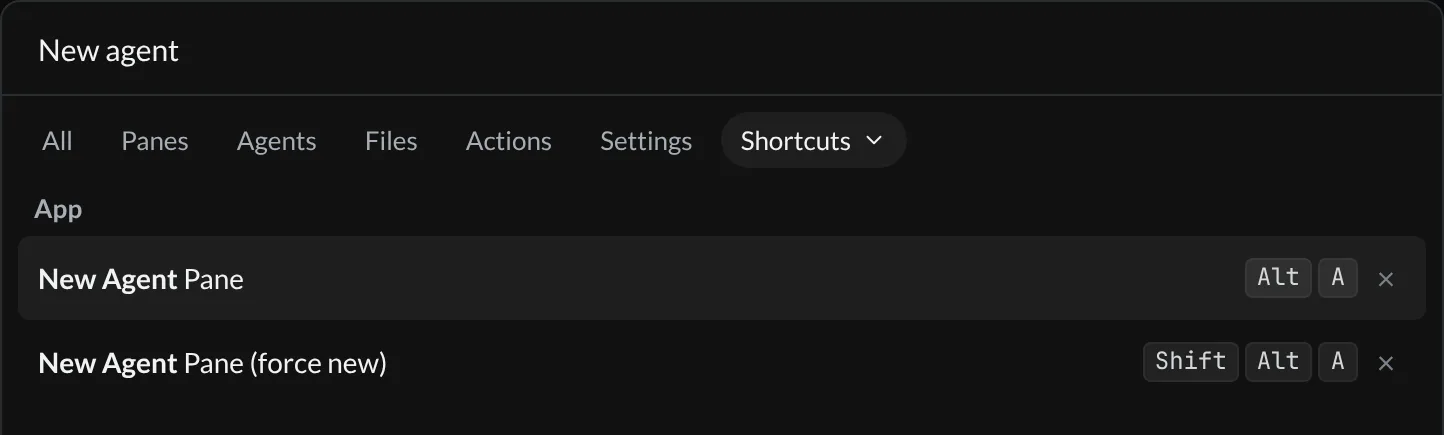
- Rebind: select a binding and press the new combination. Use a Ctrl, Command, or Alt modifier; Escape cancels recording.
- Remove or disable: select
×beside a binding. Removing the last binding disables the action; select the resulting dash (—) to assign one again. - Multiple defaults: some actions, such as the command palette, have two bindings. Each displayed binding can be changed or removed independently.
- Restore: hover a customized binding to see its default and record that combination again. Reset all appears when you have overrides; confirm it to restore every shortcut to its defaults.
If a combination is already assigned, an inline message names the other action. Choose Reassign to move that binding to this action, or Cancel to keep it where it is. Reassigning the other action's last binding leaves that action disabled.
Reserved shortcuts. Stop agent (Cmd/Ctrl+C) and Cycle permission mode
(Shift+Tab) appear with a lock. They cannot be rebound or reassigned to another
action.
For agents
Agents can perform pane, workspace, and panel actions through the hob CLI. When an agent links a supported hob command in its reply, hob displays your current, platform-aware shortcut beside the action. Rebinding an action does not require changing the agent's instructions.
Default bindings
Notation. Cmd/Ctrl means Command on macOS and Ctrl elsewhere.
Alt means Option (⌥) on macOS. Plain Ctrl means the Control key on every
platform. A shortcut applies when its surface and action are available.
App
| Action | Shortcut |
|---|---|
| Command palette / Search hob | Cmd/Ctrl+K or Cmd/Ctrl+Shift+P |
| Go to file | Cmd/Ctrl+P |
| Open folder | Cmd/Ctrl+O |
| New workspace | Alt+N |
| New worktree workspace | Alt+Shift+N |
| New window (desktop only) | Cmd/Ctrl+Shift+N |
| Settings | Cmd/Ctrl+, |
| Keyboard shortcuts | Cmd/Ctrl+/ |
| App menu (Windows/Linux) | Alt+F |
| Remote (Access to this computer) | Alt+R |
| License popover | Alt+L |
| Account usage | Alt+Shift+U |
| Feedback | Alt+Shift+G |
| Quit all windows (desktop only) | Cmd/Ctrl+Q |
Tool panels
Panel shortcuts open their destination. Sidebar and Dock shortcuts toggle their respective surfaces.
| Panel or action | Shortcut |
|---|---|
| Home | Cmd/Ctrl+Shift+M |
| Files | Cmd/Ctrl+Shift+E |
| History | Cmd/Ctrl+Shift+H |
| Search in files (opens Files with search focused) | Cmd/Ctrl+Shift+F |
| Automations | Cmd/Ctrl+Shift+X |
| Stats | Cmd/Ctrl+Shift+U |
| Saved — Bookmarks | Cmd/Ctrl+Shift+B |
| Saved — Workspaces | Cmd/Ctrl+Shift+Y |
| Local issues (a browser may reserve this for devtools) | Cmd/Ctrl+Shift+I |
| Remote issues | Cmd/Ctrl+Shift+R |
| Changes | Cmd/Ctrl+Shift+D |
| Commits | Cmd/Ctrl+Shift+G |
| Switch project | Cmd/Ctrl+Shift+L |
| Cycle open projects | Cmd/Ctrl+Shift+O |
| Cycle open projects backward | Cmd/Ctrl+Shift+Alt+O |
| Jump to project 1–9 | Alt+1 … Alt+9 |
| Toggle project rail | Alt+0 |
| Switch branch | Cmd/Ctrl+Shift+K |
| Toggle sidebar | Cmd/Ctrl+B |
| Toggle Dock | Cmd/Ctrl+Alt+B |
Panes
| Action | Shortcut |
|---|---|
| New agent pane | Alt+A |
| New agent pane (force new) | Alt+Shift+A |
| New terminal pane | Alt+T |
| New browser pane | Alt+U |
| Expand / collapse pane | Ctrl+. (Control on every OS) |
| Pin / unpin pane | Alt+Shift+P |
| Bookmark pane | Alt+Shift+B |
| Share pane | Alt+Shift+S |
| Pane actions menu | Alt+. |
| Show file location | Alt+Shift+F |
| Close pane | Alt+W |
Alt+W closes a pane; Alt+Q, next door on the keyboard, closes a
workspace; Alt+Shift+Q closes all workspaces.
Pane navigation
| Action | Shortcut |
|---|---|
| Focus pane (left/right/up/down) | Alt+← Alt+→ Alt+↑ Alt+↓ |
| Swap pane (left/right/up/down) | Alt+Shift+← Alt+Shift+→ Alt+Shift+↑ Alt+Shift+↓ |
| Equalize grid | Alt+Shift+E |
| Previous / next agent turn or terminal command | Alt+[ / Alt+] |
| Top / bottom of agent or terminal history | Alt+\ / Alt+/ |
Read more about workspace layouts and terminal command blocks.
Workspaces
| Action | Shortcut |
|---|---|
| Next workspace | Alt+PgDn |
| Previous workspace | Alt+PgUp |
| Jump to workspace 1–9 | Alt+Shift+1 … Alt+Shift+9 |
| Close workspace | Alt+Q |
| Close all workspaces | Alt+Shift+Q |
Agent pane
These controls apply to the focused agent pane. Available choices depend on its backend and configuration; see Parallel agents and Accounts and profiles.
| Action | Shortcut |
|---|---|
| Model picker | Alt+M |
| Reasoning effort | Alt+E |
| Backend / profile picker | Alt+B |
| Account picker | Alt+C |
| Toggle fast mode | Alt+S |
| Toggle Auto approval | Alt+Y |
| Toggle Plan | Alt+P |
| Cycle permission mode (reserved) | Shift+Tab |
| Send / queue the draft | Enter in the composer |
| Steer the running agent | Cmd/Ctrl+Enter in the composer |
| Schedule send | Alt+Enter |
| Start / stop voice dictation | Ctrl+Space (Control on every OS) |
| Stop a running agent | Cmd/Ctrl+C or Esc Esc |
To swap queue and steer, set Settings → Agents → Enter while an agent works
to Send now. For queue, steering, and schedule behavior, see Parallel agents.
Alt+Enter opens Schedule send when the agent has a sendable draft.
Ctrl+. expands or collapses the pane, including an agent pane.
A quick double Escape stops the focused, running agent when its menus are closed.
Cmd/Ctrl+C stops a running agent when no text is selected; selected text keeps
its normal Copy behavior. Dictation can be stopped after focus moves away from
the pane where recording began.
Zoom
These are hob's desktop zoom controls. In a browser, the browser handles its own page zoom.
| Action | Shortcut |
|---|---|
| Zoom in | Cmd/Ctrl+= or Cmd/Ctrl+Shift++ |
| Zoom out | Cmd/Ctrl+- |
| Reset zoom | Cmd/Ctrl+0 |
Other
| Action | Shortcut |
|---|---|
| Find in pane | Cmd/Ctrl+F |
| Save (editable file pane) | Cmd/Ctrl+S |
| Send selected issues to an agent | Cmd/Ctrl+Enter |
| Search settings | Cmd/Ctrl+F (in Settings) |
Browser and mobile scope
The browser IDE uses the desktop shortcut registry, including the Alt navigation controls. Your browser or operating system can claim a combination before hob receives it: Quit, New window, and devtools chords are common examples. Use the visible control or find the action in Search hob when a shortcut is intercepted. A browser IDE connected to a headless Host has the same browser limitations.
hob mobile has its own touch-oriented navigation; this table is not a promise of desktop shortcut parity. With a keyboard attached, Left and Right can move between panes when you are outside an editable field.