
Mark up and annotate
Point to the change you want, send the context to an agent, and return to its notes on the work.
A box around the detail can say more than a paragraph about where to look. Mark up a report, image, web page, or spreadsheet and hand your notes to an agent. The agent can also leave notes on the work for you to review in place. Both directions use markers and a shared card, so the discussion stays with the thing you are changing.
| Direction | What arrives |
|---|---|
| You mark up a surface for an agent | A batch of notes, precise locations, and context for the change. Image and PDF regions include clean crops. |
| An agent annotates a surface for you | Markers you can revisit, with a card for each note. |
Mark up a surface
Open the document in a render pane, or the page in a browser preview. Select Mark up in the pane header, then choose the detail you want to discuss.
| Surface | Select the detail |
|---|---|
| Image | Draw a rectangle over the region. |
| Draw a rectangle on a page. A batch can include regions from several pages. | |
| Web page | Pick an element. The agent receives element context and notes, without image crops. |
| Spreadsheet (beta) | Select a cell range in a worksheet. The range and its content identify the target. |
Type a note in Describe the change and press Enter to save it. You can add up to 12 regions to a batch. Move or resize a region, open its marker to change the note, or remove it. The floating toolbar can move out of your way. Its note count opens the list; Clear removes the batch's regions and Copy copies prompt text only, without images.
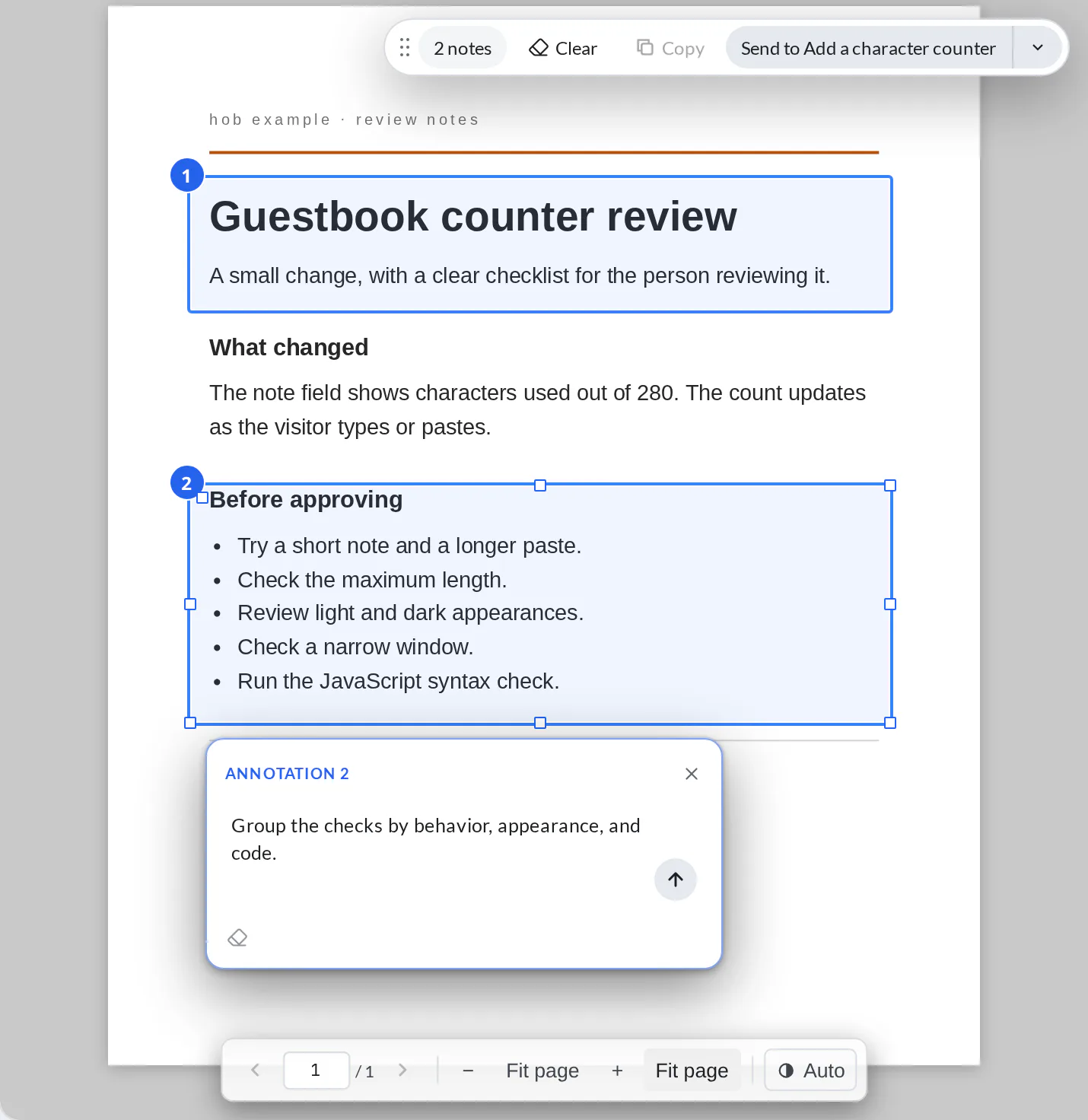
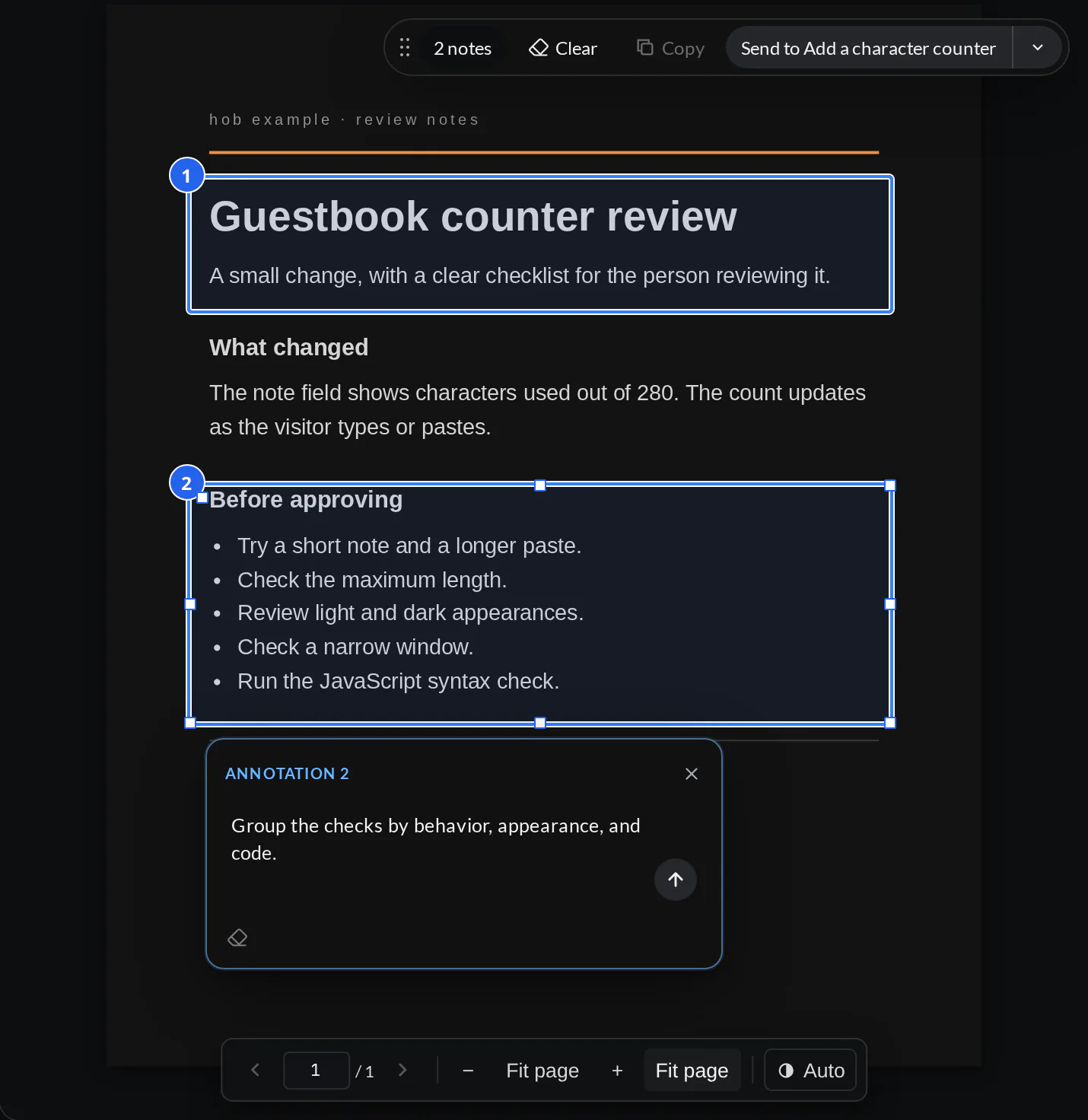
Markup is available on desktop and in the browser IDE. In hob roam, annotation batches are read-only; open the full workspace to edit them.
Send it to an agent
Choose a destination with the arrow beside Send to, then select Send to <agent>. You can use an existing agent in the document's environment or create a New Agent. A worktree is a separate environment, so its agent must share the document's environment to receive the batch.
This places an Annotations · file · N regions pill in the agent's composer. The message is not sent yet. Add any wider context, then send the message when you are ready. If you are still typing a region note, Send to saves that note before preparing the batch.
For images and PDFs, the agent receives one clean crop per region, your notes, the source file path, a snapshot fingerprint, and instructions for applying the edit. Web batches carry element context without crops. Spreadsheet batches carry worksheet ranges and cell context.
Keep a draft and return to sent notes
Each document pane keeps one unsent batch. Reopen Mark up to resume it, or select its composer pill to return to the document. While editing that draft, Update draft saves it back to the same conversation.
Sent batches stay in the conversation. Select their pill to open Annotation details, inspect the region previews, and read the notes. Sent notes are read-only. Apply again puts an editable copy on the document, with the destination locked to the original conversation.
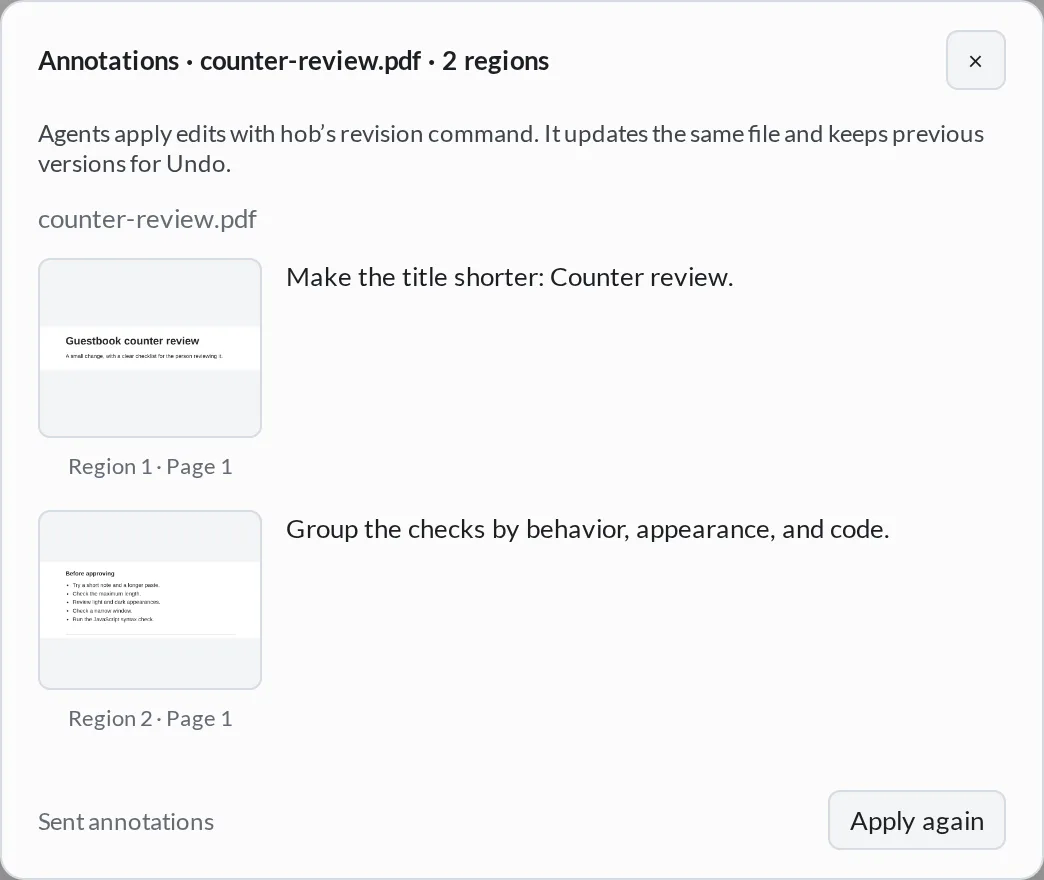
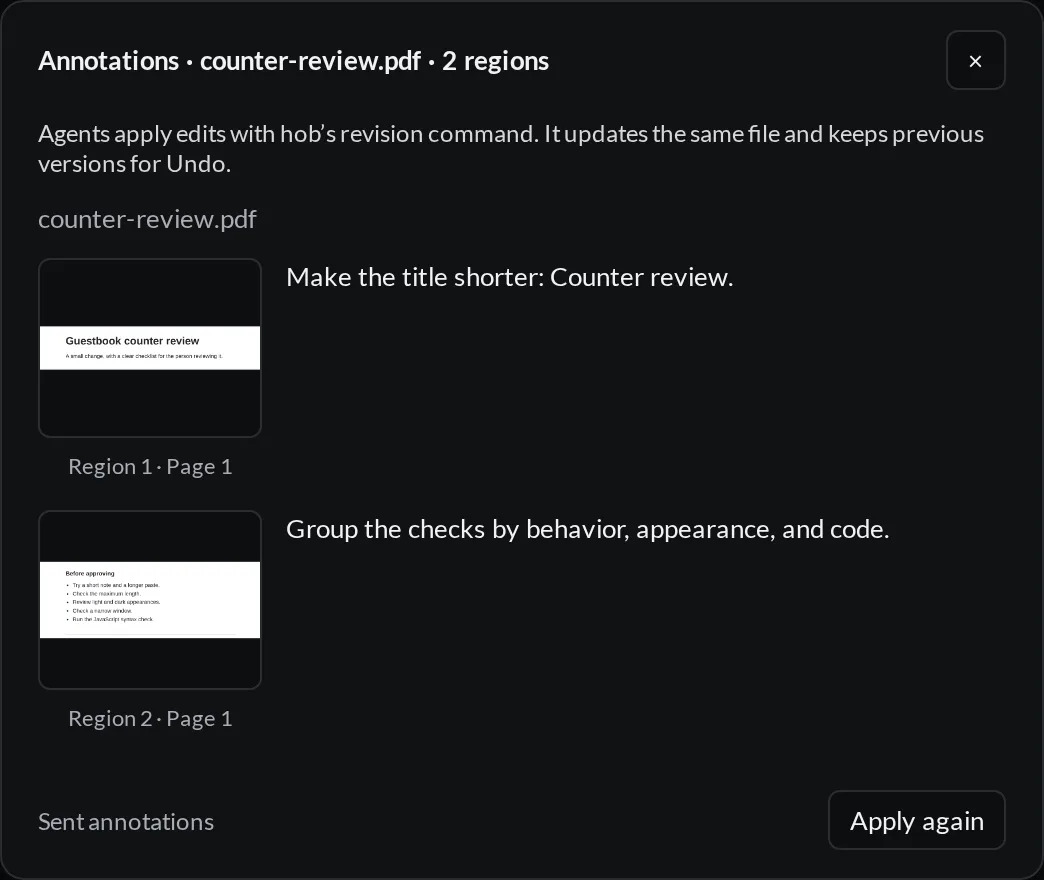
If the document changed, hob shows a notice instead of treating the old selection as current. Review the affected regions against the current content before sending them again.
When the agent changes the file
For an annotated edit, the agent passes the batch's expected fingerprint to
hob revision create. hob refuses to replace an original that changed while
the agent worked. Sending markup alone creates no revision; see
Keep a previous version
for saved copies, Undo, and restoring older work.
Annotations from your agent
Ask an agent to annotate the part you want explained. Open its annotation link to reveal the first note. Next moves through the set; Done or Esc closes the card and leaves the markers. Hover over a marker to preview its note, or select it to keep the card open.
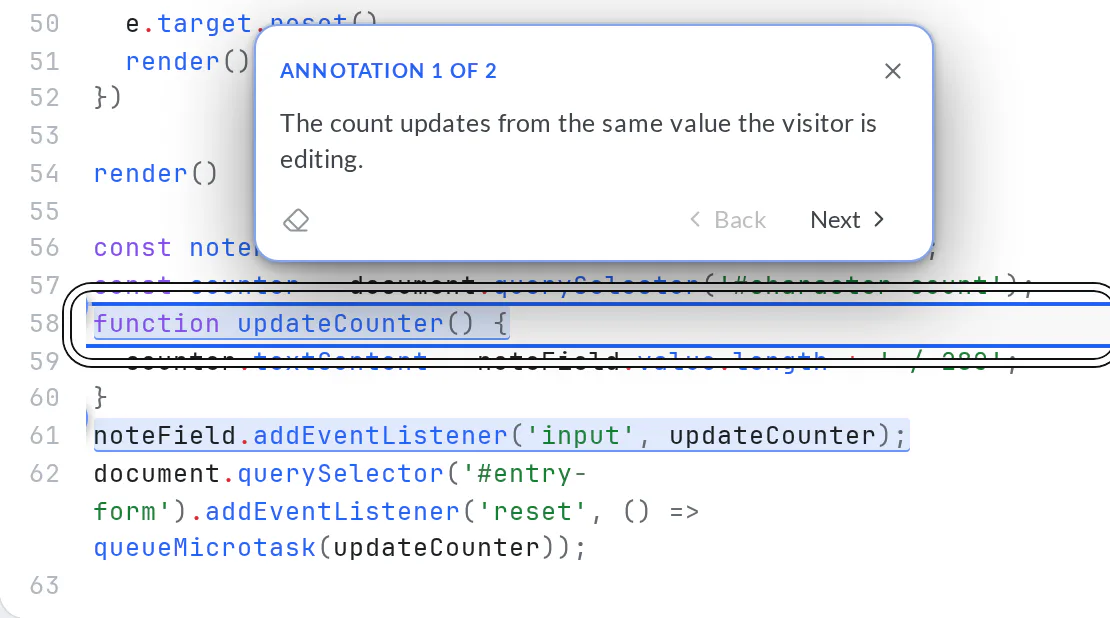
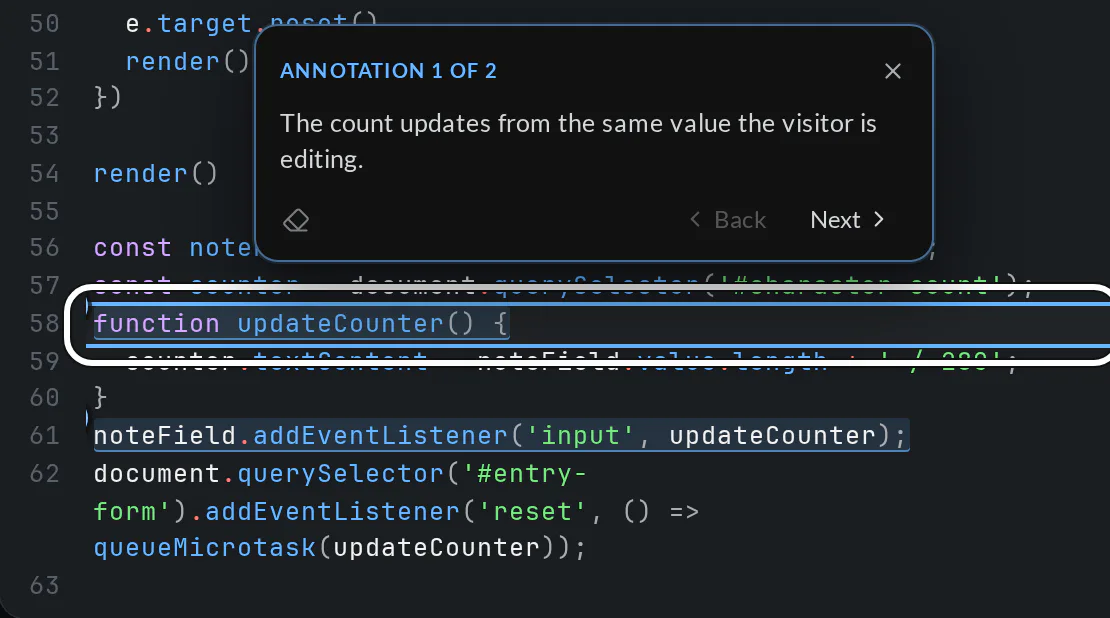
The markers belong to the pane and survive restarts. Depending on the surface and changes to its content, status labels include Current, Needs review, Relocated, and Missing. A missing target is not a new guessed location.
You can clear the set with Remove all; you cannot edit or move an individual agent note. Starting your own markup clears the agent markers on that pane. A new attention pointer or annotation set also replaces its previous markers.
Attention, annotations, or a walkthrough?
| Use | What happens | Where it can point |
|---|---|---|
| Attention | The agent brings one target into view immediately. Its card closes after about 15 seconds, pausing while hovered; the marker stays until cleared or replaced. The link replays the pointer. | One file location, pane location, or hob control. |
| Annotations | A link applies a set of resting markers. Open the cards when you want the notes. | Exactly one file or pane content surface, including several pages of one PDF. |
| Walkthrough | A link offers an ordered tour. You choose when to start, then advance through its stops. | Several files, panes, or hob controls. |
Agents offer annotations and walkthroughs when you ask for that guidance. See Working with your agent for attention and walkthroughs in the guestbook workflow.
For agents
Read the annotation batch attached to the message. Use its paths, region notes, crops where supplied, and edit contract. Do not create or send the person's markup yourself. Work on the actual file with normal file tools; spreadsheet pane reads can include unsaved content, but are not an editing interface.
For an image or PDF edit, write the finished result to a separate file and use the fingerprint supplied with the batch:
hob revision create reports/counter-review.pdf reports/counter-review.updated.pdf \
  --expected-fingerprint '<fingerprint from the batch>'
hob revision list reports/counter-review.pdf
To offer your own notes on request, use hob annotate --items. Each call
must target one content surface. Examples of individual items:
{"file":"app.js","location":"line:58","match":"<exact gutter line>","note":"This updates the counter."}
{"file":"mockup.png","location":"rect:12,20,65,15","note":"Keep the counter near the note field."}
{"file":"reports/counter-review.pdf","location":"page:1","match":"Before approving","note":"Try each behavior before committing."}
{"pane":"web_<id>","location":"node:n7","note":"Try typing here."}
{"pane":"render_<id>","location":"cell:'Review'!A1:C4","note":"These are the checks still to run."}
Pass one item or a same-surface array, for example
hob annotate --items '[{"file":"app.js","match":"<verified line>","note":"This updates the counter."}]'.
Read text with hob pane view before choosing gutter lines. Web locations
require the fingerprint from the same pane snapshot. Spreadsheet locations
require an open render pane and a named worksheet; reuse the locations from
hob pane view <id> --sheet 'Review' --cells A1:C4.
Use hob attention for a single immediate pointer. Include the exact
returned deep link in your reply. Use hob walkthrough create only for an
opt-in ordered tour. The CLI reference covers the
commands and their boundaries.