
Stats
Understand your patterns with agents, follow work through to results, and find useful changes to your workflow.
See where your attention goes, what your agents finish, and which work happens while you are away. Stats brings those patterns together across your conversations, commits, issues, and automations so you can decide what to change about the way you work in hob.
Start with a question: are tasks reaching review, are repeated follow-ups clarifying the same missing context, or could a routine check run unattended? Use the numbers to find work worth inspecting in History.
Read patterns in context
Activity counts and time are signals, not a quality score. Research, review, and implementation produce different patterns. Stats covers activity and recorded outcomes; consult your provider for token usage and charges.
Open Stats and choose a lens
Open the command palette and choose Open Stats View, or use
Cmd/Ctrl+Shift+U. Stats opens as a full-page workspace view; opening it again
focuses the existing view in this window.
Choose the project name or All projects, then a section and period:
| Section | Start here when you want to understand… |
|---|---|
| overview | Conversation activity, commits, issues, backend/model mix, and response times. |
| prompts | The length and frequency of your opening prompts and follow-ups. |
| productivity | Which conversations reached a commit, how they started, and how plans and issues progressed. |
| hours | Combined agent effort, busy clock time, your prompt rhythm, and unattended automation starts. |
Periods are Today, 7 days, 30 days, 365 days, and All time. Day boundaries use the viewing device's time zone. A streak badge summarizes consecutive days of agent activity; it is a way to recognize a rhythm, not a target.


The screenshots show a small illustrative history of guestbook work. Creating the example project does not create this usage history; your Stats fills in as you and your agents work.
Overview: what happened
Read the four headline measures together:
| Measure | What counts |
|---|---|
| Active conversations | Agent conversations with at least one completed turn in the selected period. |
| Turns | Completed agent turns: a prompt followed by a result. |
| Commits | Git commits authored by you in the repository, including commits made with other tools. |
| Issues fixed | Local hob issues marked done and remote issues closed through hob during the period. |
Delta chips compare with the preceding period when comparison data is available. Today compares today so far with the whole of yesterday, so an early-morning decrease does not describe a full day's work. Read the comparison label before interpreting the percentage.
Below the totals, explore activity by day and hour, conversations by backend and model, and latency. Warm TTFT is time to the first token when the backend was already running; Cold TTFT includes launching or restarting it. Compare similar tasks and enough turns before deciding a different backend or model would suit the work better.
If turns rise while commits stay flat, return to the conversations: you might be researching, reviewing, or waiting on a decision. The useful question is whether that work is reaching its intended outcome.
Productivity: what reached a result
A conversation ships here when it produces a commit linked through hob. That is narrower than Overview's Git commit total. Use hob's commit workflow to keep the result connected to the turn that produced it.
| Measure | How to read it |
|---|---|
| Ship rate | The share of active conversations with a hob-linked commit in the period. A review-only conversation may finish successfully without shipping. |
| Median time to ship | Wall-clock time from the conversation's first message to its first linked commit, including gaps between working sessions. |
| Follow-ups per ship | Average follow-up turns before the first commit in conversations that shipped. |
| Automated starts | The share of active conversations started by an automation or another agent. |
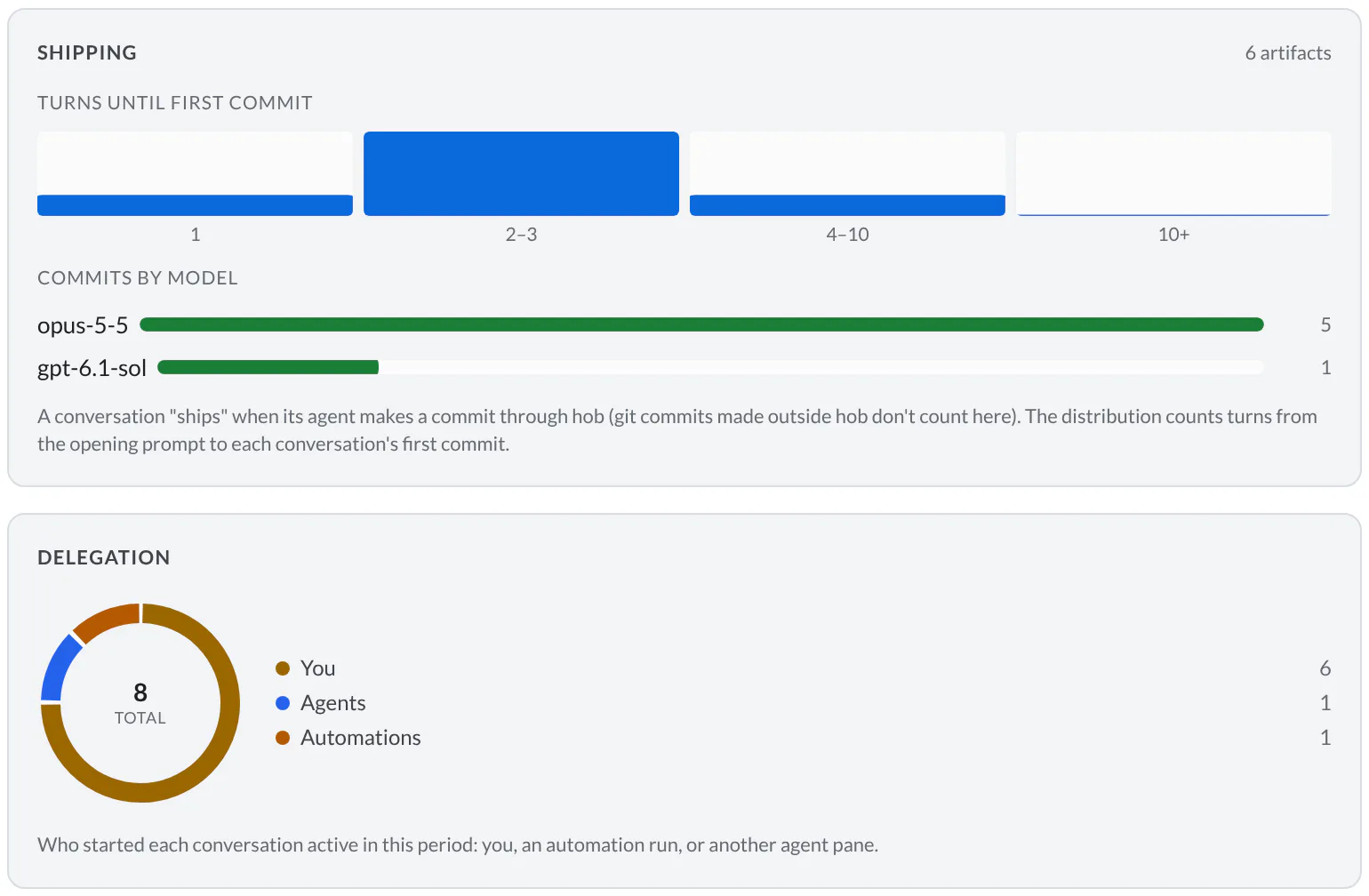
Delegation separates conversations started by you, automations, and agents. Planning follows proposal chains, treating revisions as one plan; approval or handoff counts as acceptance. Issue flow covers local issues, including the turnaround of issues fixed in this period even if they were opened earlier.
Use a pattern to choose one experiment:
| If you notice… | Try this next |
|---|---|
| Implementation tasks repeatedly stall before a commit | Give the next task a smaller acceptance criterion and keep its preview and review beside the agent. |
| Many follow-ups repeat missing context | Put the constraints and expected checks in the opening prompt. Review a few examples in History before changing your instructions. |
| Plans need repeated revision | Agree on scope and constraints first. Use plan review where the change needs an approach agreed in advance. |
Look at your prompts
Switch to prompts to compare opening and follow-up lengths, distributions, and daily patterns. These word counts exclude machine-authored prompts; human messages scheduled for later still count as text you wrote. Longer is not inherently better: a concise prompt with a clear outcome can be more useful than a long one missing the acceptance criteria.
Try the revised approach on comparable work, then inspect both the Stats pattern and the actual result. Testing and review provide the evidence that a higher count alone cannot.
Hours: when the work happens
Agent hours adds time spent on completed turns, much like person-hours. Busy hours counts elapsed time with at least one agent working; overlapping turns in this project count once. Two agents working for ten minutes contribute twenty agent-minutes and ten busy minutes. Idle open panes add neither.
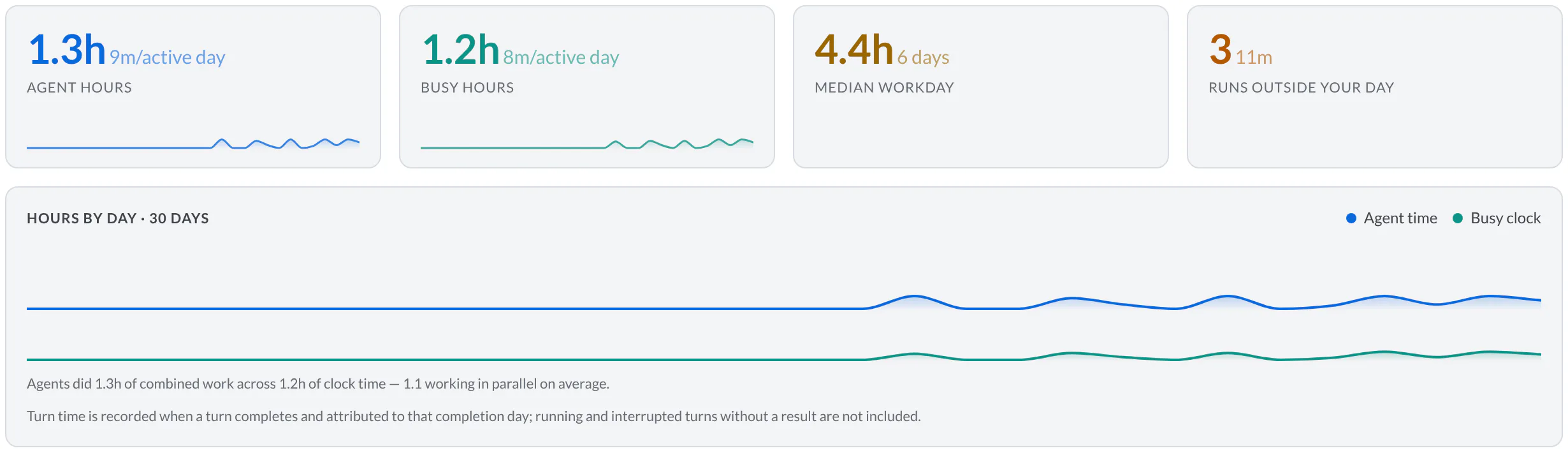
Turn time is recorded on completion and assigned to that completion day. Running or interrupted turns without a result are excluded. Automation-step elapsed time is reported separately; it is not added again to agent hours.
Median workday is the span between your first and last human prompt on days with at least two prompts. It includes breaks. Hours with prompts counts distinct clock-hours when you sent a human prompt, rather than measuring continuous time at the keyboard.
Runs outside your day counts scheduled or agent-triggered automation agent steps that started outside the inferred work window. That window runs from the first human prompt through the last, with a ten-hour minimum; a previous day's window can cross midnight. Scheduled message delivery does not open or extend the window, and manual automation runs are excluded. The displayed history-coverage date tells you how far retained automation records go back.
If routine checks still depend on you remembering to start them, consider a schedule. Inspect the automation's outputs afterward to decide whether the unattended work was useful. More concurrency or longer agent hours do not by themselves establish time saved.
All projects: where the focus went
Choose All projects to see how activity is distributed across your included projects. The project activity chart helps you recognize a busy workstream or one you have not returned to. Stats options → Include in Global Stats controls whether the current project participates; hidden or removed recent projects are excluded too.
Keep these scope differences in mind:
| In All projects | Interpretation |
|---|---|
| Git commits | Use cached repository data, refreshed as projects open. Open a project to refresh its Git picture. |
| Project-busy hours | Adds busy time per project; simultaneous work in different projects remains additive. |
| Project peak capacity | Combines project peaks, not a measurement of simultaneous activity across the entire Host. |
| Human workdays and unattended starts | Use retained history across the Host, rather than the included-project filter. |
| Shipping and issue turnaround | Typical values are weighted blends of project statistics, not medians or percentiles recomputed from every individual event. |
For agents
Use hob open view stats to open or focus the person's Stats view. The hob CLI
has no command to export these metrics. Ask for the relevant readings before
interpreting them, then use History
to investigate the conversations and results behind the pattern.