
Themes
Choose your workspace colors, follow light or dark mode, and give terminals their own palette.
hob ships with eight themes, each with a light and a dark variant. The default is hob style, and the color scheme follows your system unless you choose Light or Dark explicitly.
There are three choices: the interface palette, its color scheme, and an optional terminal palette. Keep them together, or choose terminal colors you already know while the rest of the workspace uses your preferred theme. To make your own palette, ask an agent or start from a copy in Settings; see Custom themes.
Switching themes
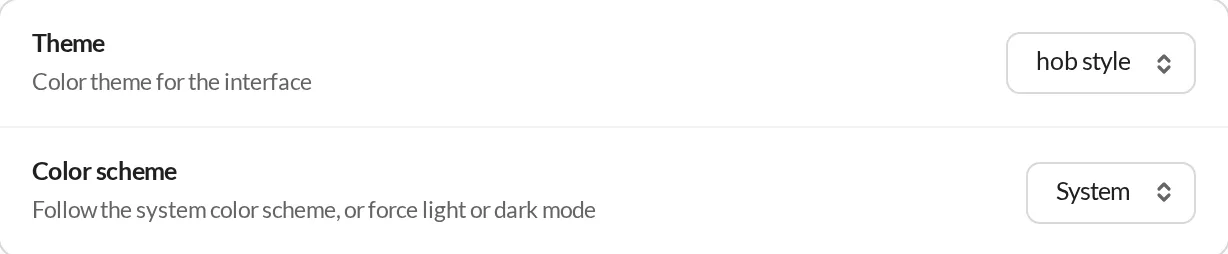
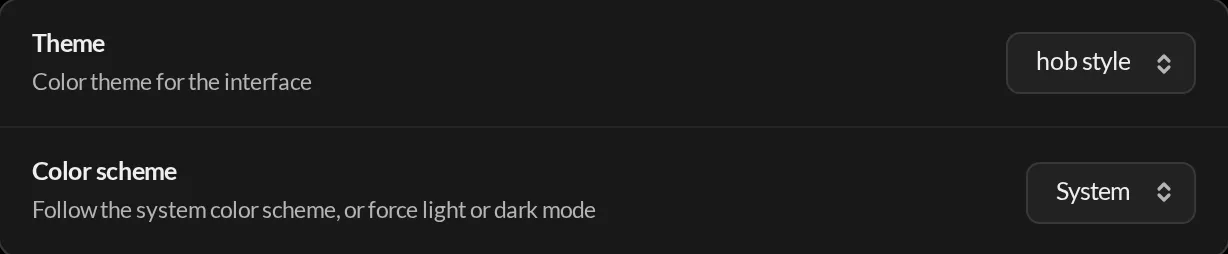
Choose Settings → Appearance → Theme to change the interface palette. Changes
apply immediately. You can also find Cycle Theme and Cycle Color Scheme
in Search hob (Cmd/Ctrl+K) to step through the available choices.
Color scheme
Set Settings → Appearance → Color scheme:
| Mode | Behavior |
|---|---|
| System (default) | Follow the operating system's light/dark preference live. |
| Light | Keep the light variant. |
| Dark | Keep the dark variant. |
System responds to an OS appearance change without restarting hob. In the browser IDE, it follows the preference reported by your browser. A separate terminal palette uses the same resolved light/dark scheme.
Terminal theme
Choose Settings → Terminal → Terminal theme. Auto (match theme) keeps the terminal palette aligned with your interface; selecting a palette gives terminal output its own colors. The list also shows your custom terminal palettes.
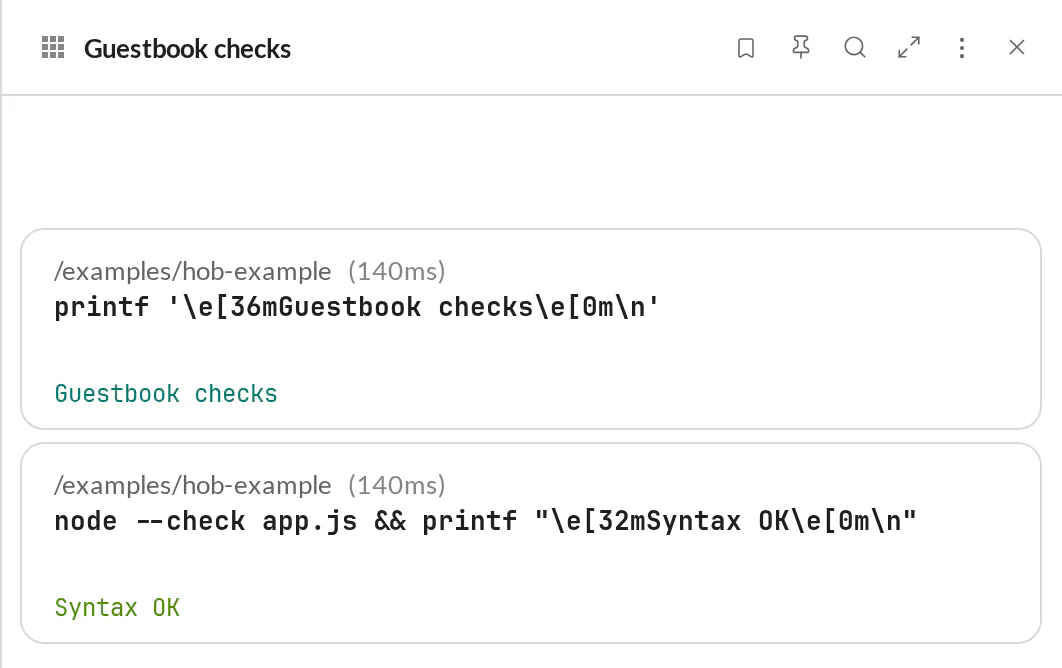
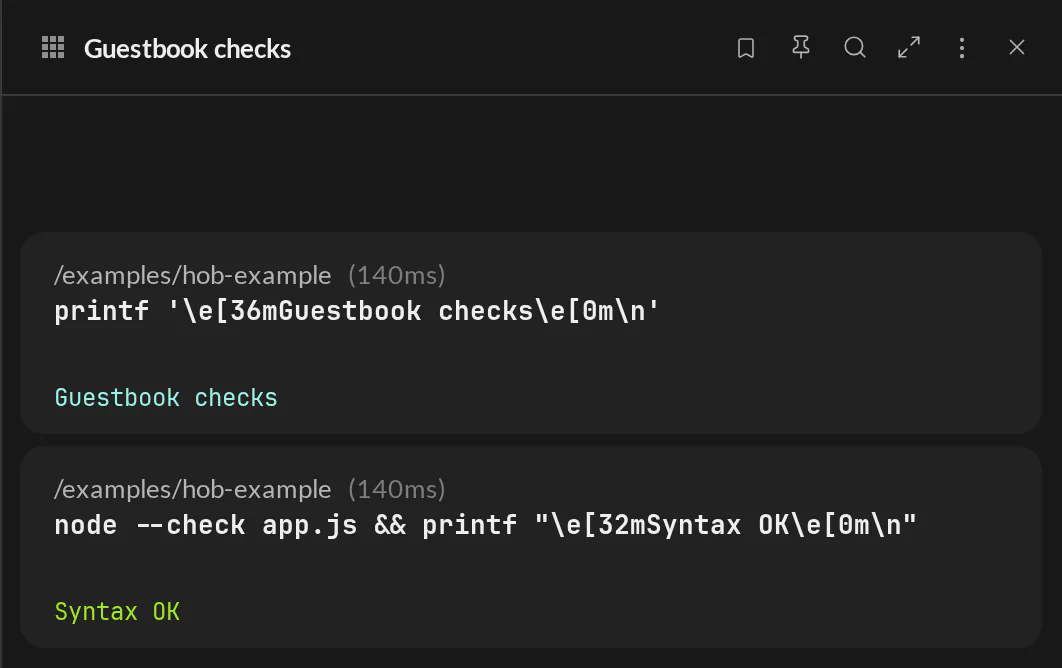
In block mode, command surfaces remain part of the interface theme while ANSI-colored output uses the terminal palette. Direct terminal mode also uses that palette for its background, foreground, cursor, and selection. Programs that print explicit RGB colors can keep their own colors.
For agents
An agent can point you to an appearance setting when helping you configure the workspace. Theme changes preserve the panes and their contents, so you can choose the appearance while keeping the work in view.
Built-in themes
| Theme | Character |
|---|---|
| hob style | The default: neutral greys and monochrome accents. |
| Ink | Crisp neutrals with clear contrast. |
| Twilight | Cool, blue-tinted neutrals. |
| Soft | Warm pastels and softer contrast. |
| Ember | Amber and orange accents. |
| Neon | Bright, saturated accents. |
| Rose | Rose and blush: plum-tinted neutrals in dark mode, blush-white in light. |
| Solarized | The familiar Solarized palette. |
| Monokai | Vivid accents on the Monokai palette. |
Both palette pickers offer this built-in set. The Theme picker also lists your custom themes.
What themes affect
Switching the interface theme changes surfaces, text, and borders throughout hob. Pane accents for agents, terminals, bookmarks, and automations follow the palette. Diff insertion and deletion colors follow the theme too. Terminal palettes include 16 ANSI colors—eight standard and eight bright—alongside the direct terminal's background and text colors.
Under Appearance → Working indicator, choose hob grid or Spinner and an optional Working color for running work in pane headers, workspace tabs, and activity lists; Use theme color restores the theme choice. This preference is global and also applies in hob mobile. It changes only the running indicator: status dots keep their colors, and the composer's thinking animation has separate controls under Thinking indicator.