
Projects and workspaces
Keep each project organized, give every workstream its own panes, and carry shared context between tasks.
Implementation, investigation, and review often happen at once: one agent building a feature, another investigating a bug, and a check you want to revisit. hob gives each workstream a place. You can switch tasks without rebuilding the layout or losing the conversation that explains the work.
Start with three names:
| In hob | What it holds | In the guestbook example |
|---|---|---|
| Project | The repository or folder and its agent sessions, issues, and history | The guestbook project |
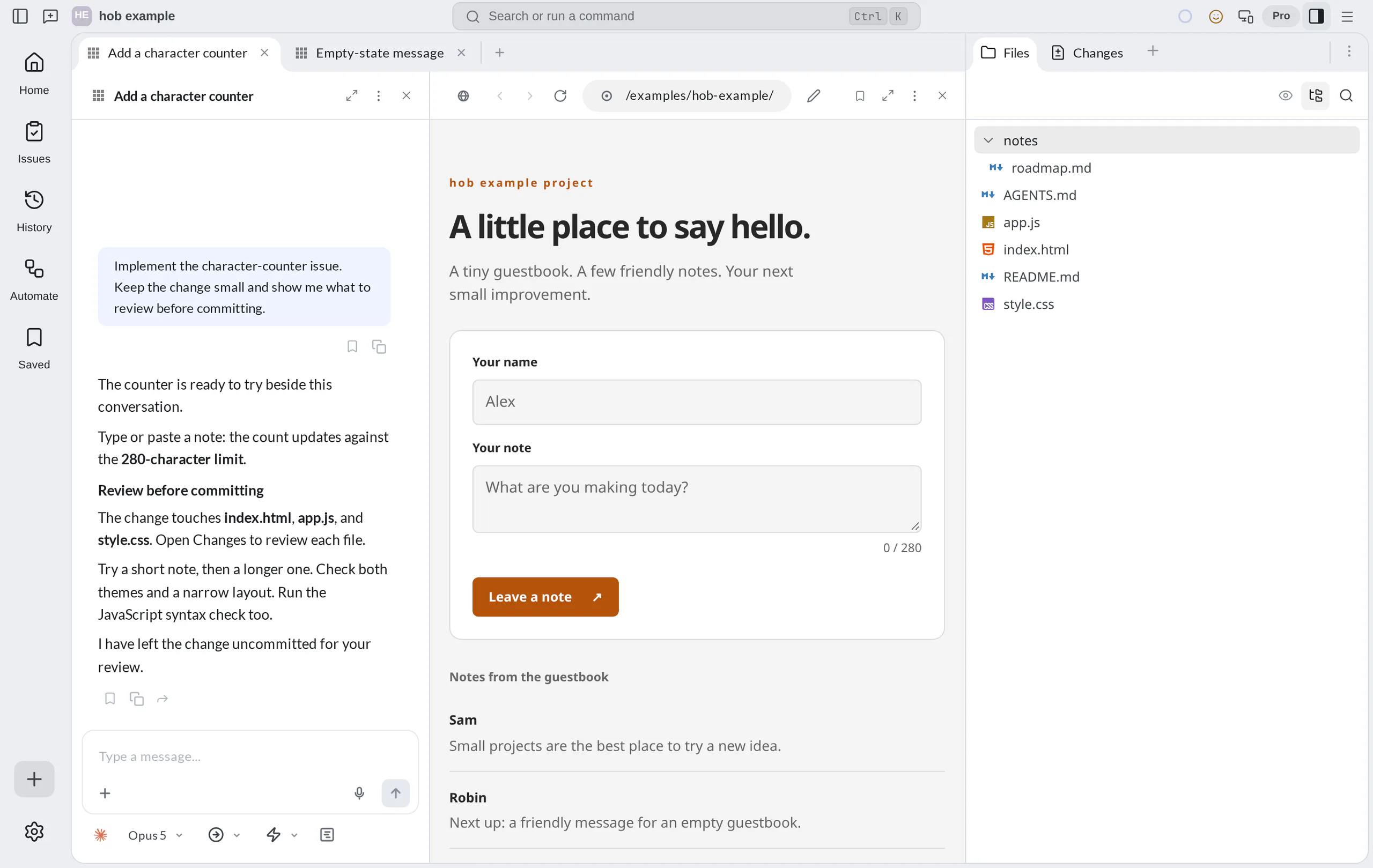
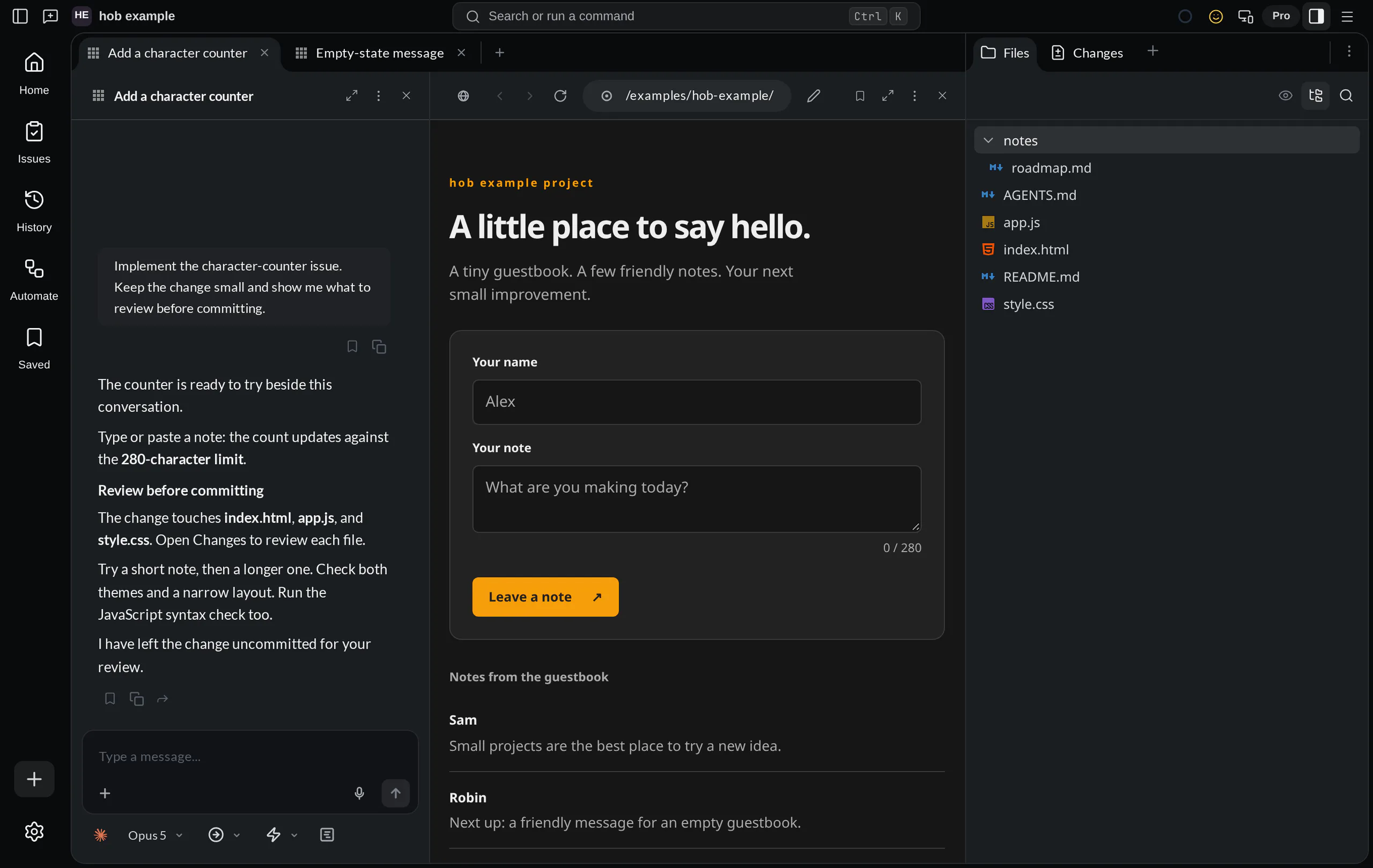
| Workspace | A named layout for one workstream | “Add a character counter” |
| Pane | An agent, terminal, preview, file, or other working surface | The counter agent beside the guestbook preview |
Creating workspaces
Choose New Workspace from the command palette, or use the + beside the workspace tabs and choose a workspace. Name it after the work you want to do: “Add a character counter,” “Review accessibility,” or “Investigate saving.”
An empty pane offers a launcher for an agent, terminal, browser, or file. Add the panes the task needs. Most work begins with an agent; a preview, terminal, or reference document gives you context beside the conversation. You do not need a new workspace for every new pane.
A workspace is not a separate checkout
Workspaces in the same environment share files and a Git checkout. Separate tabs organize the conversations and panes; edits still affect that shared checkout. Coordinate agents editing the same files, or use a worktree when tasks need separate branches and filesystem state.
Worktree workspaces
From Home, choose New Worktree Workspace when you want another branch without switching the checkout used by your current workspace. The dialog has three paths:
- Open branch searches local branches and explains whether hob will use the primary checkout, reuse an existing environment, reactivate an archived one, or create a managed worktree. Attach an external worktree before using a branch already checked out there.
- New branch creates a branch from the selected Start from branch. You can also use a verified commit or tag. Uncommitted changes are not part of that starting point. If the branch name already exists, Open it instead takes you to that branch.
- Attach worktree adds an external checkout without transferring its ownership to hob. Locked or detached candidates remain visible with an explanation when they cannot be attached.
The workspace is bound to that environment: its panes, terminal working directories, files, and Git actions use the same checkout. Creating or opening it does not switch another checkout's branch.
The Workspace tabs setting shows tabs from the current environment only or from all environments combined. It changes the tab strip, not Home.
Close or delete a worktree
When a branch's work is done, Close worktree keeps its checkout for later. Delete worktree… removes a hob-managed checkout to reclaim its disk space. Both keep the Git branch and conversation history. Close removes the worktree from the active session and closes its workspaces; you can add it again later.
In single-project Home, open the worktree group's Worktree actions menu. Choose Close or Delete there. Environment groups appear when the project has more than one environment; turn off Show all projects to see them. The menu also offers Re-check worktree. A closed managed worktree also has Delete in the Attach worktree list of the New workspace dialog.
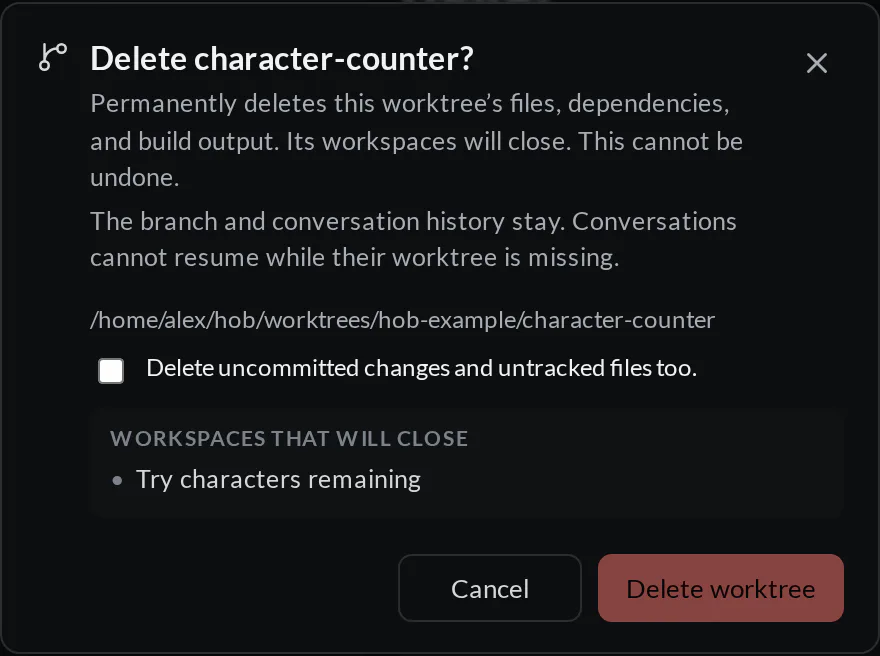
Delete always asks for confirmation. Check the path and Workspaces that will close list. If the checkout has uncommitted changes or untracked files, you must select Delete uncommitted changes and untracked files too before the Delete button becomes available. Deletion cannot be undone.
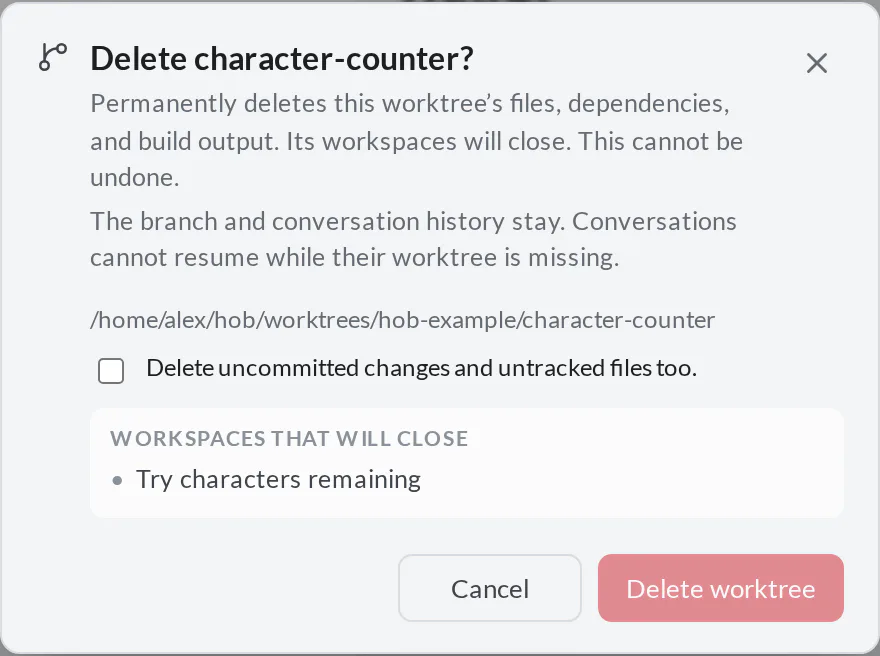
Before deleting:
- Stop automation runs that use the worktree.
- Close any panes that remain after its workspaces close, including Dock and pinned panes. The confirmation closes workspace panes through the normal workspace-close path.
- Use Close worktree for an attached checkout. hob deletes only its own managed worktrees, never the primary checkout.
The uncommitted-files acknowledgment does not bypass these checks.
| What remains | Close | Delete |
|---|---|---|
| Checkout files, dependencies, and build output | Stay on disk | Removed |
| Git branch | Stays | Stays |
| Conversations and History | Stay | Stay; recovered conversations are read-only |
| Saved workspace snapshots | Restore after reopening the preserved worktree | Cannot restore the deleted environment |
Reopening a closed worktree's branch reactivates the same environment. After Delete, opening that branch creates a new worktree in a new folder. A snapshot bound to the deleted environment does not transfer to it or fall back to the primary checkout. See Saved.
To read an old conversation after its worktree is gone, open it from History. hob places it in your active environment and shows: “This conversation is read-only because its worktree is no longer available.” You can read, search, copy, and bookmark. You cannot send, resume, steer, queue, fork, hand off, or approve a plan in that recovered pane.
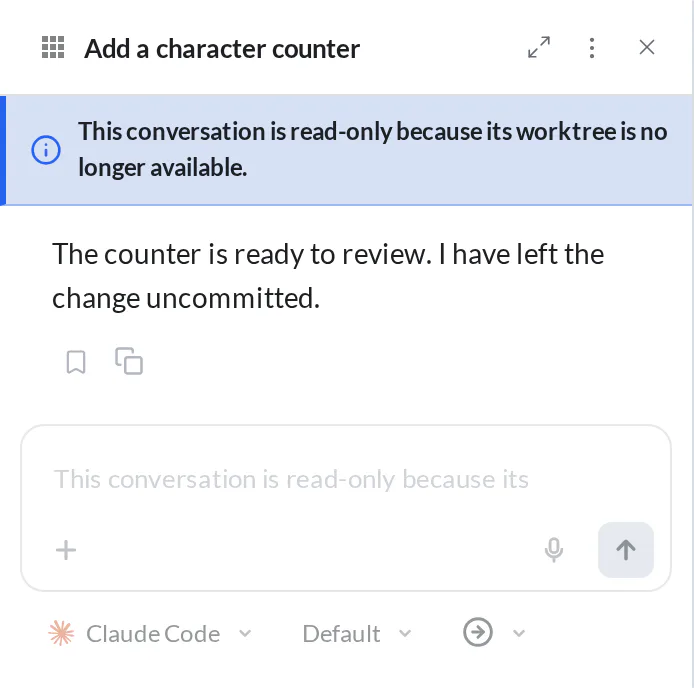
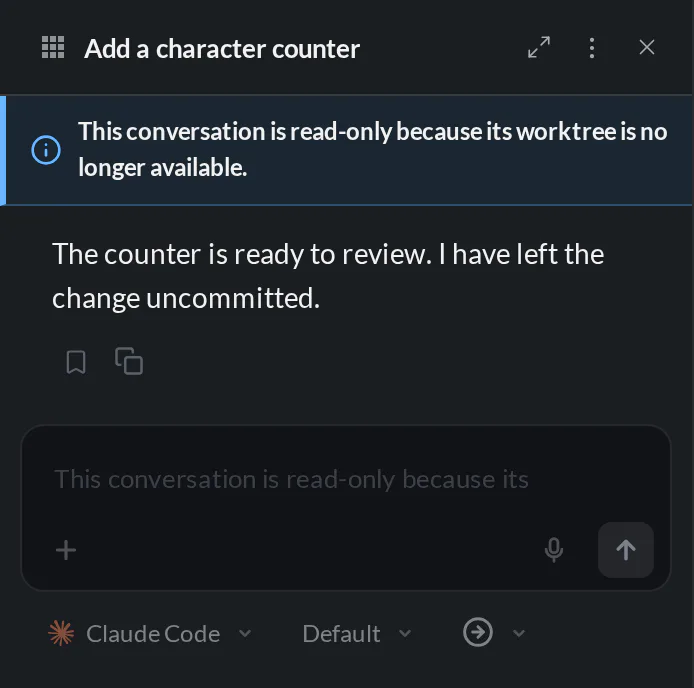
To continue, open a new worktree workspace for the branch and start a fresh
agent. Type @- to reference the read-only pane,
then ask:
Ask your agent
If a folder disappears outside hob, Home shows its Missing or Error status with the reason on hover. Use Re-check worktree to rescan. For a missing managed folder, Delete worktree… can also remove its remaining Git registration. A pane that was already open does not gain the recovery banner automatically; the next attempted action reports the unavailable environment.
Choose the folder for new managed worktrees in Git & environments settings.
Switching workspaces
Select a workspace tab to bring its tiled layout into view. In the example, “Add a character counter” holds implementation and preview. “Empty-state message” holds a planning conversation and the project guide.
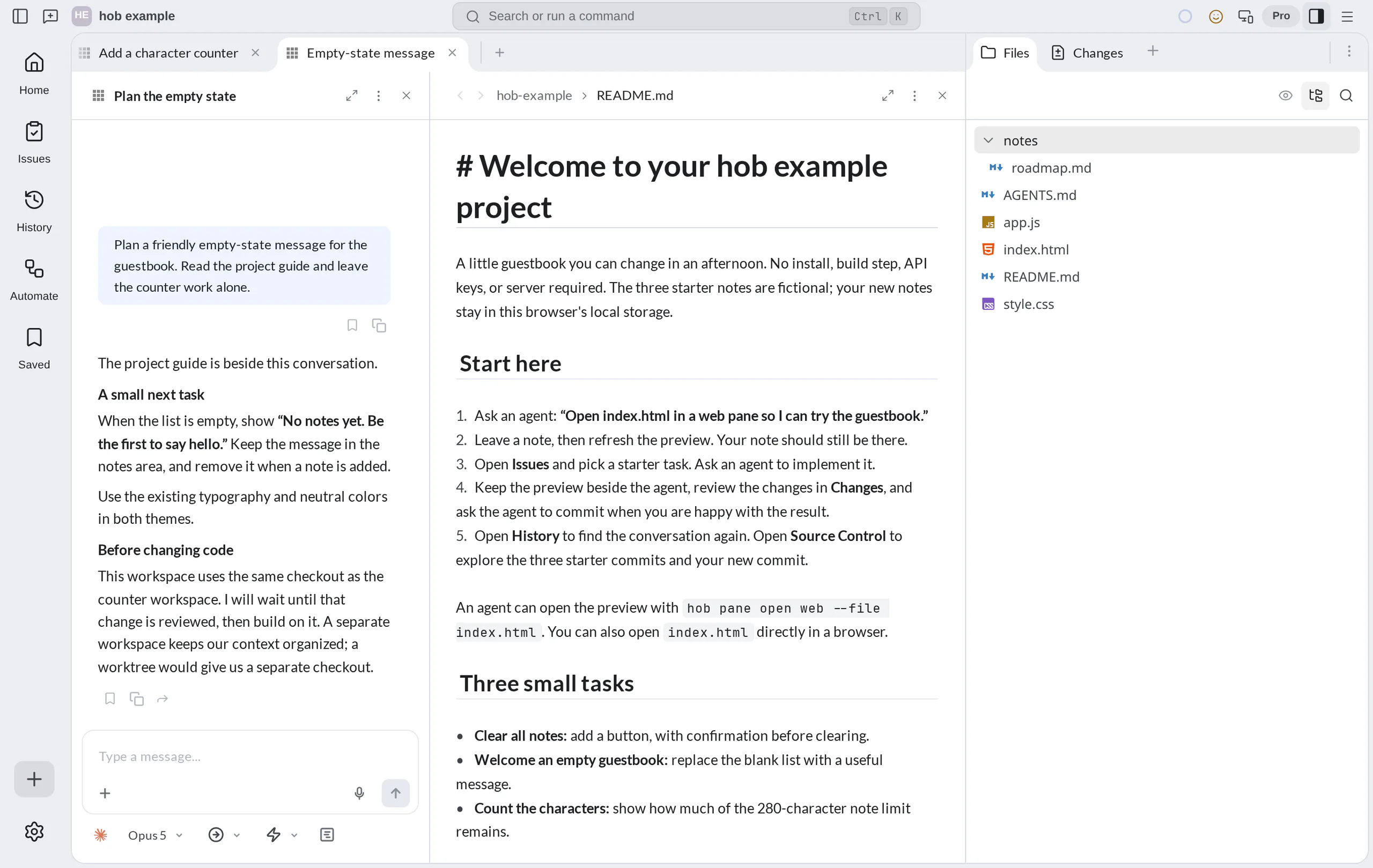
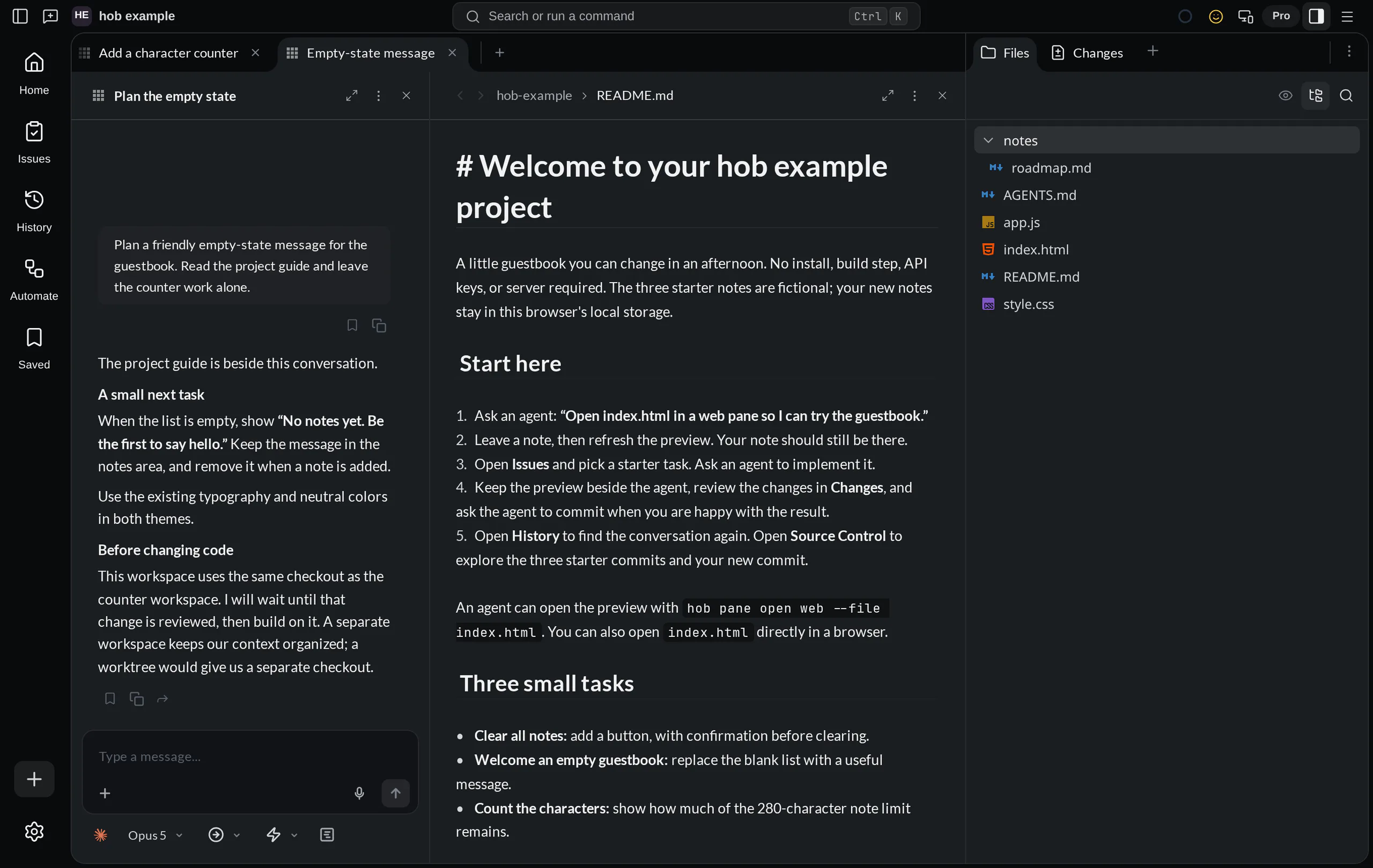
Changing the visible workspace is navigation. Agents and commands can keep running in other workspaces while you focus here. Use Home when you need to see which task wants your attention.
To move to another project, use the project switcher at the top left. Project switching also keeps background work running; it does not mean closing the project. Each project's context is kept separately so you can return to it. Home can make the same move when Show all projects is on.
Keeping cross-workspace context in the Dock
The Dock stays available while you switch workspaces in the window. When you switch projects in that window, it keeps its width, visibility, and selected tool tab. Docked panes belong to their project and return when you return to it. Another window's Dock is separate.
Use the Dock for something that spans tasks: the project roadmap, a reference document, or an agent helping you across several workstreams.
Drag a pane by its header into the Dock to move it there. Its tab stays reachable alongside fixed tool tabs such as Files and Changes. Select the pane's tab when you need it, then return to Files without removing the pane from the Dock.
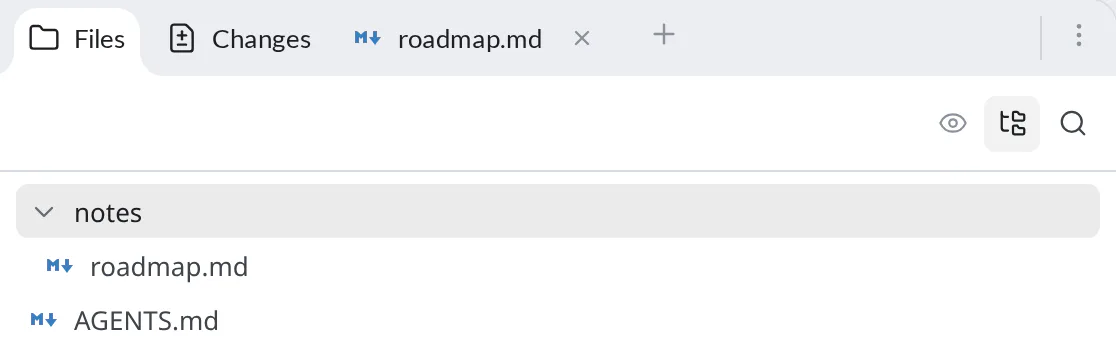
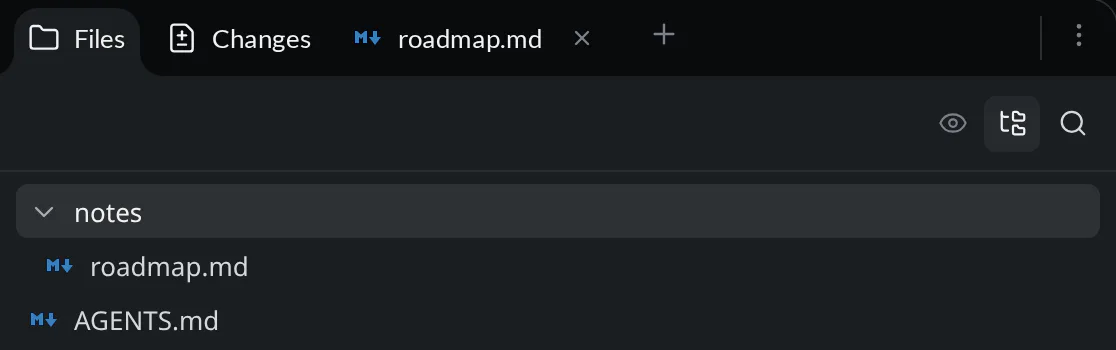
Keep task-specific agents and checks in the workspace grid, where they can tile beside the work. Use the Dock deliberately: it takes persistent screen space. Drag Files or Changes between the tool panel bar and Dock to place or reorder those tools, or manage their placement in Settings.
Find work across workspaces and projects
Open Home from the tool rail, the command palette, or Cmd/Ctrl+Shift+M.
It lists the current project's open workspaces and their panes. Select a pane
to jump to it.
In Workspace options at the top of Home, turn on Show all projects. Now one list holds the workspaces from every open project. The muted project name tells you where each workspace belongs. Select a workspace or pane to open its project and go straight to that work. Agents, terminals, and servers keep running; navigation closes nothing.
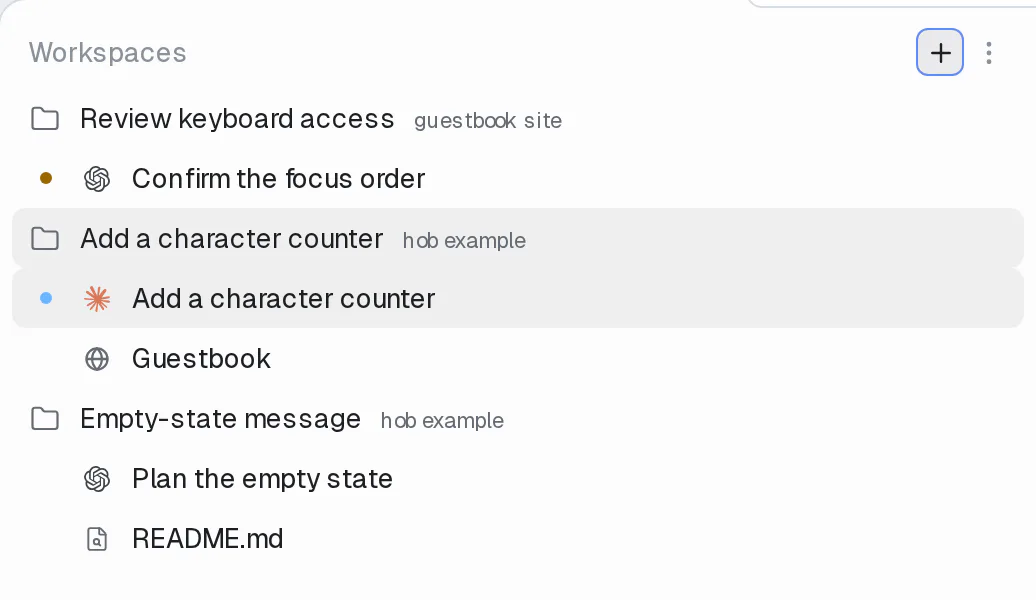
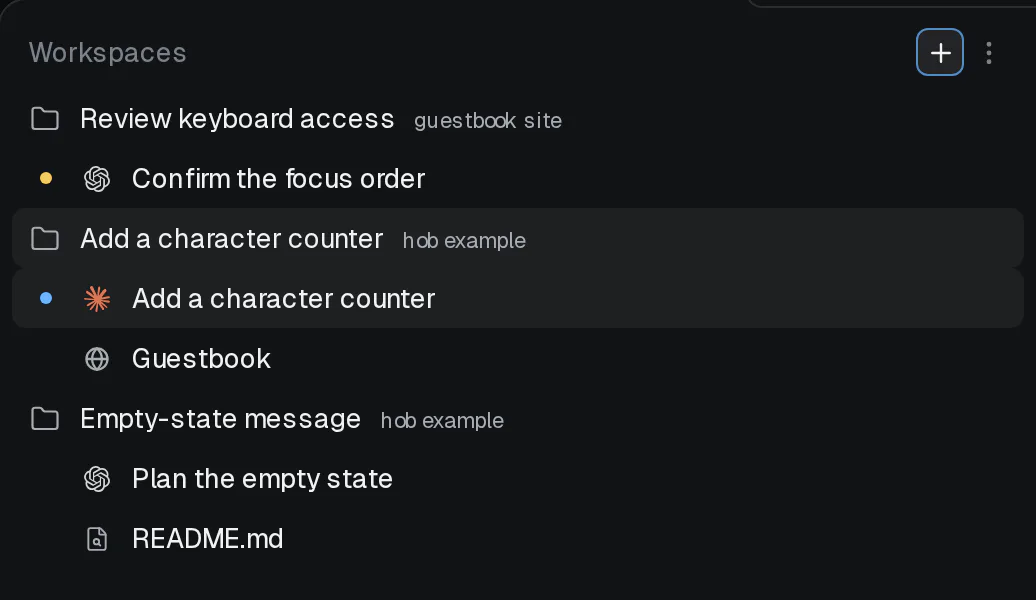
If another native window owns the workspace, hob brings that window forward. In the browser IDE, it attaches to the workspace's window instead.
Choose a sort order in the same Workspace options menu:
| Sort | What comes first |
|---|---|
| Default | Creation or manual order. |
| Recent | The latest completed agent turn, rather than the last visit or draft. |
| Smart | Requests for input or errors, then results to review, then running work, then idle work. |
Sorting changes Home only; workspace tabs keep their order. These workspace preferences apply app-wide.
Activity indicators appear beside panes and roll up to workspace tabs:
| Indicator | What to do |
|---|---|
| Animated working indicator (hob grid or spinner) | Work is still running; return when you need to check progress. |
| Yellow dot | Review the agent's question, permission request, or plan. |
| Red dot | Inspect the error and decide how to continue. |
| Solid blue dot | A result finished while you were elsewhere and is waiting for review. |
| No indicator | The pane is idle with nothing waiting for acknowledgment. |
A workspace can show several indicators when its panes are in different states. Reviewing one result clears that pane's marker; the workspace still points out other panes that need you. See Working with your agent for the decisions behind the yellow indicator.
Home shows open work only. Reopen a closed workspace from a workspace tab's context menu. Find named layouts in Saved, past conversations in History, and activity patterns in Stats. hob mobile has its own Home layout; see Remote access.
Keep Tabs to switch and reorder workspaces, or choose Workspace options → Workspace header → Current workspace for one compact chip. Select that chip to find the active workspace in Home; the + still opens Create workspace or pane.


What's saved
hob saves the workspace layout and pane state as you work, including the layout proportions, conversation and terminal history, open files, and presentation state used to return to the work. You do not need to save a workspace manually after every adjustment.
See Returning to your work for what restores after a restart and which processes you must start again.
Saved workspace snapshots
Use Save workspace in a workspace's menu when you want a named snapshot of a useful setup. Reopen it from the Workspaces tab in Saved, where you can organize snapshots into folders and attach notes.
Automatic persistence keeps your current workspace up to date. A named snapshot preserves a particular setup to use again; it is not a Git commit or a backup of uncommitted files.
Closing workspaces
Use the X on the tab, middle-click it, or choose Close workspace. Closing removes that workspace's layout and can close the panes belonging to it. Review any close prompt for running work or a saved snapshot. Conversations remain available in History, and workspace undo can restore a closed layout. A fresh workspace appears when you close the last one.
The default shortcuts are Alt+W for the focused pane, Alt+Q for the
workspace, and Alt+Shift+Q for all workspaces. Closing is different from
switching away: switch tabs when you want background work to continue.
Multi-window
On desktop, choose New Window when a task needs another screen. Each window has its own workspaces and Dock. Saved window context lets you return to the layout on a later launch; running processes follow the lifecycle of the hob host.
For agents
Give a new workstream its own named workspace, then open the assigned agent directly there. For example:
hob workspace new --name "Empty-state message"
hob pane open agent --workspace "Empty-state message" --task "Plan a friendly empty-state message for the guestbook. Read the project guide; do not edit files yet."
Open Home for the person with hob open panel home. Its combined list
stays a navigation surface; use hob list for your own pane and workspace inventory.
Use a worktree when implementation needs its own checkout. Open supporting
panes in the same workspace, and name agent panes after their current task.
For deliberate shared context, hob pane move <pane-id> --to dock moves a
pane into the Dock. See CLI for targeting existing
workspaces, environments, and exact pane placements.