
Commits and artifacts
Follow a change from review to commit, then back to the agent conversations and decisions that produced it.
A finished change should keep its explanation. hob connects durable outputs—such as commits, issues, and approved plans—to the conversations behind them. Those links are provenance: a way to find who worked on something, what they were asked to do, and how they reached the result.
Move forward from review to commit, and on to a pull request when the work is ready to share. Later, travel back from the commit to the original conversation without reconstructing the story from filenames and timestamps.
Commit the reviewed change
In the guestbook task, review the counter's diff, try the preview, and run the checks you need. Then ask the agent to commit the agreed files:
Ask your agent
The agent uses hob git commit, which records the commit's connection to its
current turn. If a second agent contributed a completed review, --link-pane
adds that conversation too. The commit then has one place to find the work and
its supporting discussion, even when the agents used different backends.
You can also stage files, enter a message, and commit from Changes yourself. The agent command is the path that explicitly links a commit to an agent turn; a commit made elsewhere does not automatically gain that context.
Create a pull request when ready
For a project connected to a git platform, ask the agent to create a pull request from the current branch after the review is complete. Include the target branch, a summary of the result, and the checks performed. See connected issues for platform setup and CLI reference for the command interface.
hob pr create creates the PR on the platform and returns its URL. In a running
hob project, it pushes the current branch to origin before creating the PR, even
when you request a draft. Use the returned platform link for the PR's review and
merge workflow. The included guestbook is a local exercise; it needs a remote
repository and platform setup before this step applies.
The CLI also supports editing the title or body, commenting, and closing a PR.
When a PR addresses existing remote issues, --issues or --issue-urls can
include their closing references. These refer to platform issues, not the
local example's issue numbers.
PR creation returns a platform URL. It does not create the same conversation-linked artifact entry shown for commits below. Keep the PR link in the conversation and use the commit's provenance to recover the work behind it.
Follow a commit back to its conversations
Open Commits and select the commit hash's Open commit diff action, or select a commit hash attached to a conversation in History. The commit pane brings its message, changed files, additions, and deletions into the workspace.
Look for Conversations above the files. Origin identifies the conversation that recorded the commit; Linked identifies an additional contributor. Select either entry to open that conversation as a peek at its linked result turn, or its source request when a result is unavailable.
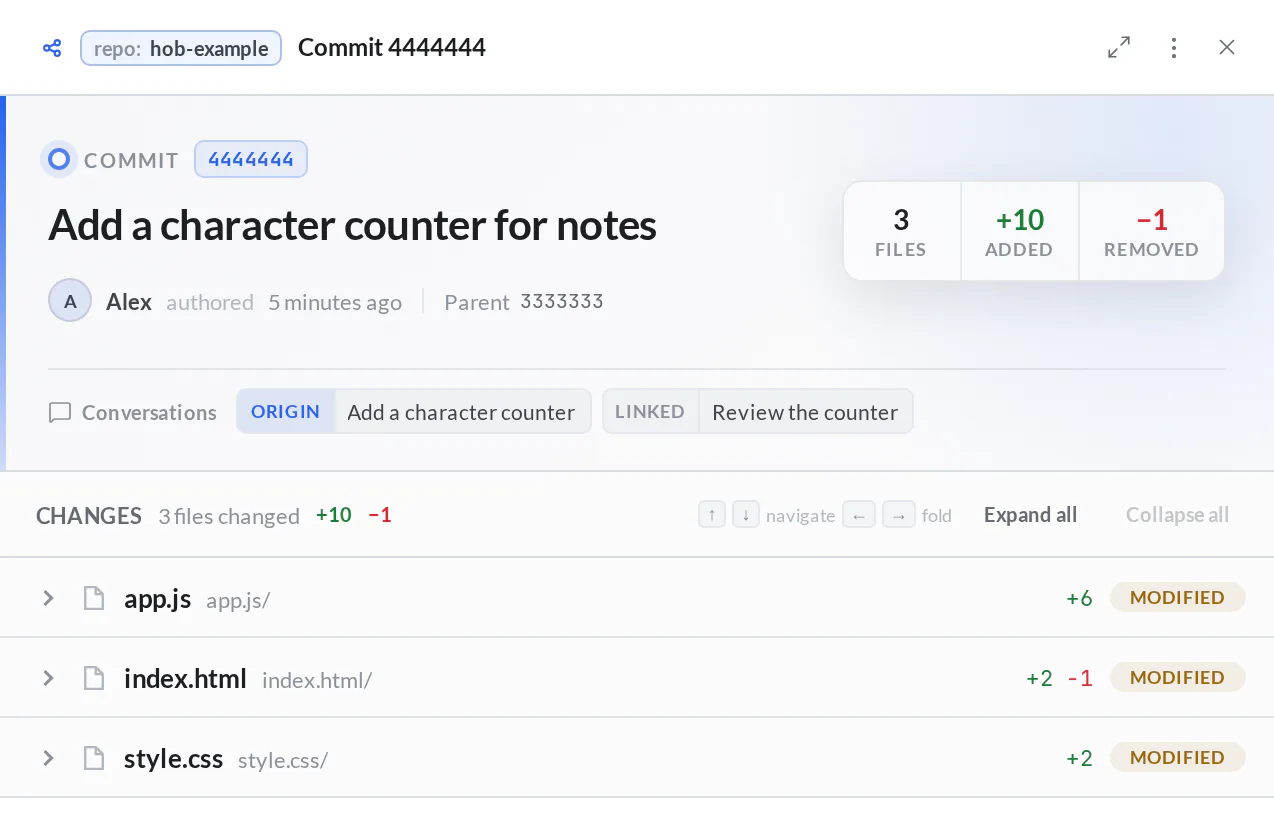
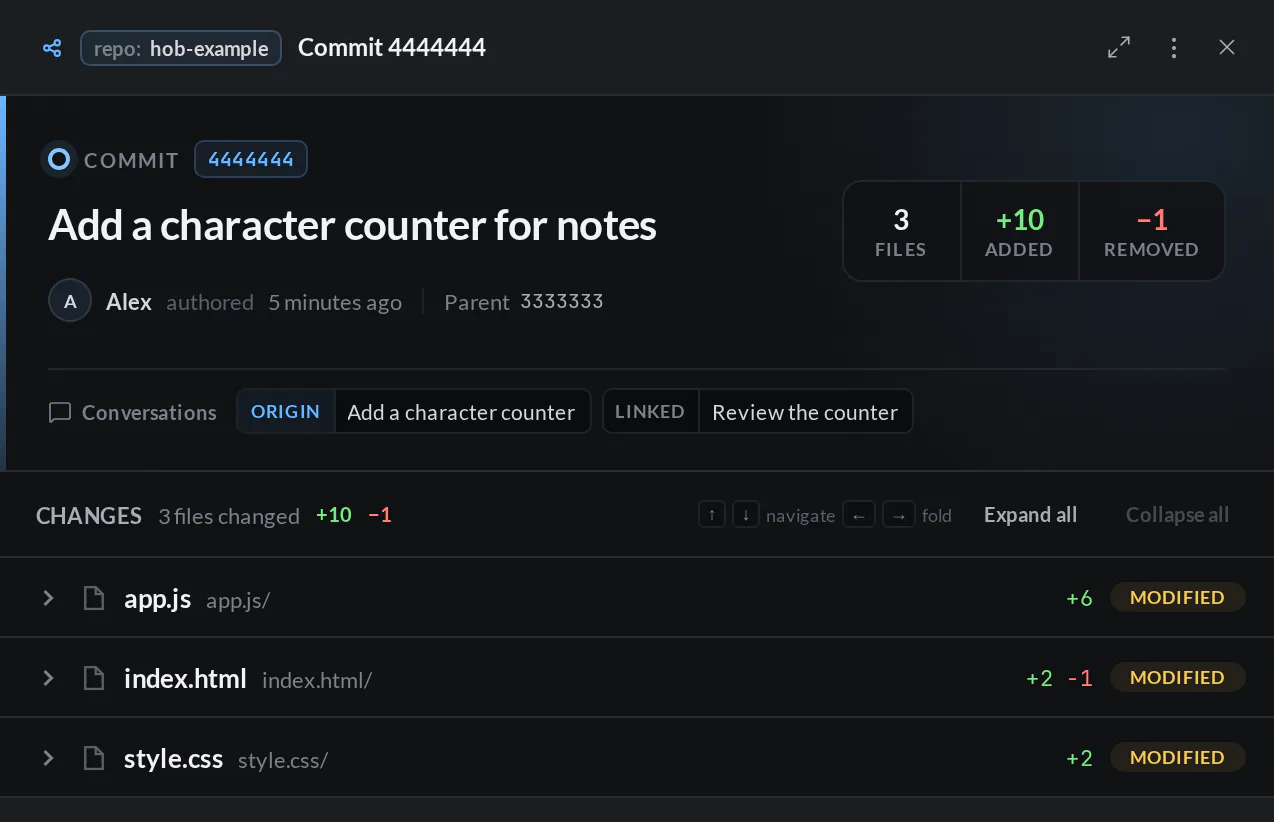
Expand a file to read its committed diff. This comparison describes a saved commit; use Diff viewer when you want to accept or reject chunks in the current working file.
History provides the other direction: an artifact's title takes you to the conversation point behind it, while its commit hash opens the commit diff. You can start with either the discussion or the result and follow the connection.
What becomes an artifact
Artifacts appear with the relevant conversation in History. Different kinds have different destinations:
| Output | What you can recover |
|---|---|
| Commit | The originating turn, additional linked contributors, and the committed diff |
| Issue | The conversation behind the issue and its local or connected issue reference, with current closed or deleted state where available |
| Plan | The plan and its review outcome, including approval, handoff, dismissal, or iteration |
| Handoff | The connection between the conversation that handed work off and the one that received it |
| Walkthrough or annotations | The saved guidance and its originating conversation; starting or applying it remains your choice |
A generated PDF, report, or mockup can also be an output of your work. Open it in Files & previews, or keep an automation's outputs with its run. Writing a file alone does not make it a conversation-linked commit or issue artifact.
Keep the evidence with the work
A planning agent, an implementer, and a reviewer may all contribute to one change. Link the contributors that informed the result so a future review can recover their reasoning. You can then trace an issue through its discussion to the committed code, rather than searching several unrelated chat histories.
A provenance link records context, not correctness. Keep checking the diff, the tests, and the task's acceptance criteria. Use Saved to bookmark a decision you expect to revisit.
For agents
Use hob's Git wrapper for repository work. After the person requests the commit, inspect and stage the intended files, then create it from your agent pane:
hob git status --short
hob git diff -- app.js index.html style.css
hob git add -- app.js index.html style.css
hob git commit -m "Add a character counter for notes"
If a reviewer contributed, add its real pane ID to the commit command:
hob git commit -m "Add a character counter for notes" \
  --link-pane <reviewer-pane-id>
Use one of those commit commands. Each --link-pane records that pane's
latest completed turn; it is repeatable for multiple contributors. Confirm the
review is complete before linking it. An additional link does not move the
conversation or change which agent authored the commit.
hob issue create similarly records an issue's origin. Return the exact issue
link; open an issue pane when the person asks to view it. See
Issues.
For a requested PR in a connected project, use hob pr create with a clear
summary and validation. Return its URL and report what was pushed or published.
The issue and PR commands that create, edit, comment on, close, or complete an
item accept the same repeatable --link-pane, and so do hob annotate and
hob walkthrough create. To connect your turn to an artifact that already
exists without changing it, use hob link:
hob link commit HEAD --link-pane <reviewer-pane-id>
hob link issue 12
hob link pr 42
hob link walkthrough <walkthrough-id>
Linked conversations appear in Activity and in the issue or PR pane.
hob instructions for agents deliver this guidance at agent launch by default. See Working with your agent for the wider collaboration interface.