
Terminals
Run checks beside your agents, keep command output in context, and find and reuse commands across sessions.
Run a check where you and the agent can both see its result. Keep a test run beside the agent fixing it, revisit the command that worked yesterday, or turn a useful check into an automation. Commands and their output stay together, so you can follow the result without reconstructing a stream of scrollback.
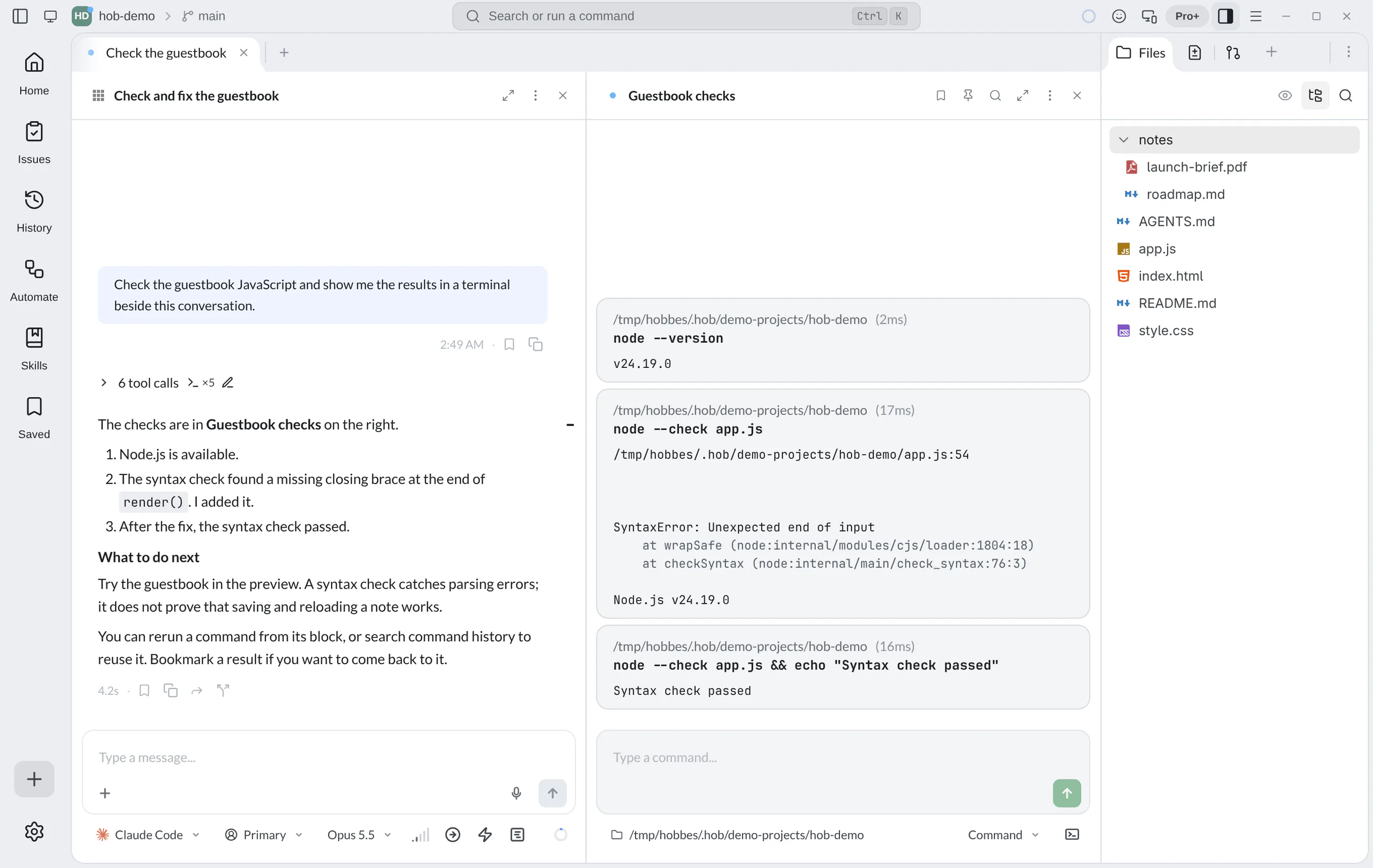
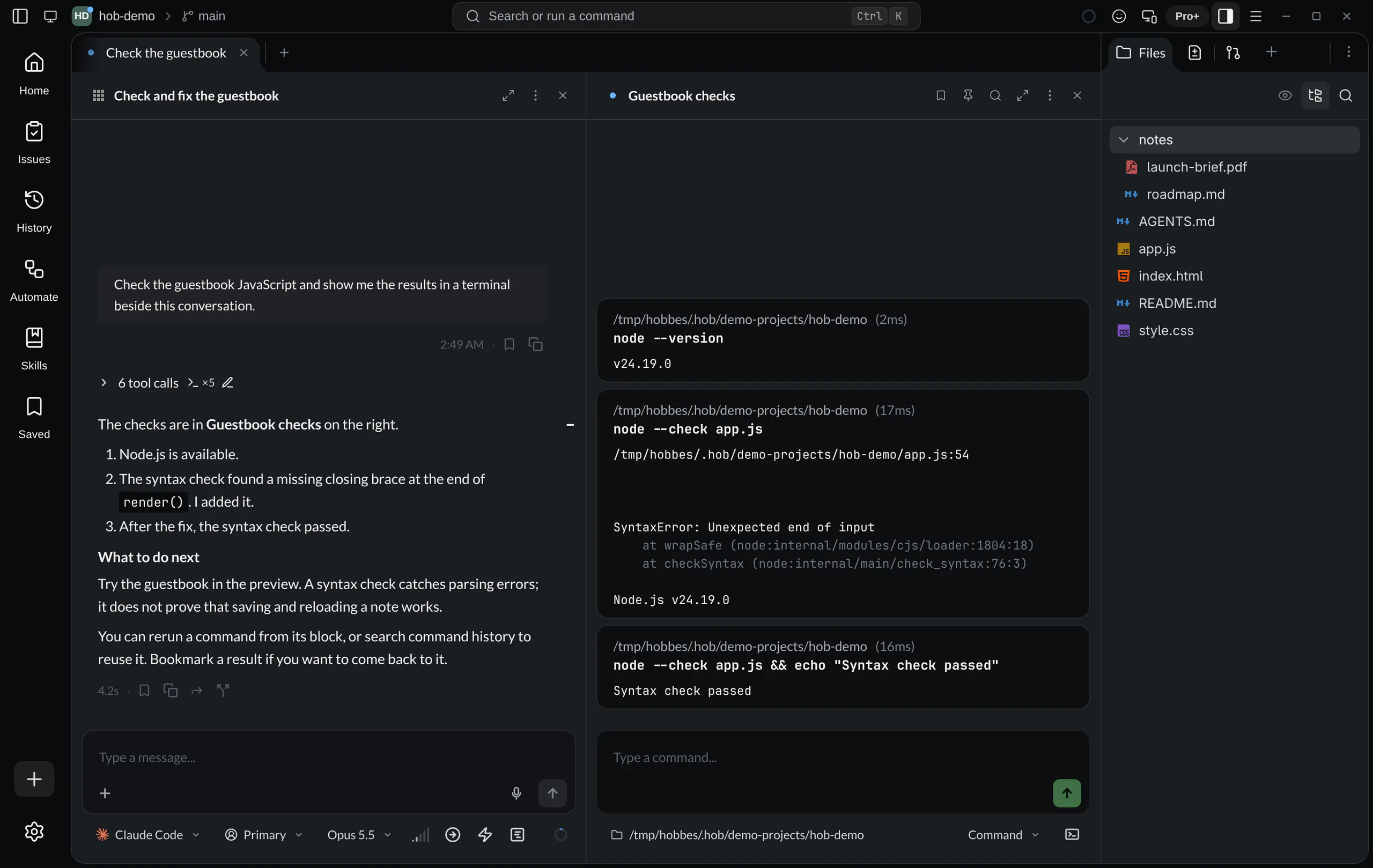
Open a terminal beside your work
Choose New Terminal from a new-pane launcher, or use the command palette. The terminal opens in the workspace's project or worktree environment. Its working-directory control shows where your commands will run.
For the example guestbook, you can check the JavaScript syntax if Node.js is installed on the machine running hob:
node --check app.jsA successful syntax check normally prints nothing. It verifies that JavaScript can be parsed; test adding and reloading a note in the preview to check the app's behavior too. In your own project, use its existing test, lint, or build command. See Testing for a complete review loop.
Read a command result
In block mode, each command has its own block with the command text, working directory, elapsed time, and output. Long commands can be expanded to read the complete text. Output stays associated with the command that produced it when you return to the terminal later.
Hover a block to reveal its actions. You can rerun the command, copy the command and output together, bookmark the result, or save the command as an automation. More options includes separate command/output copying. A running command also exposes its stop action.
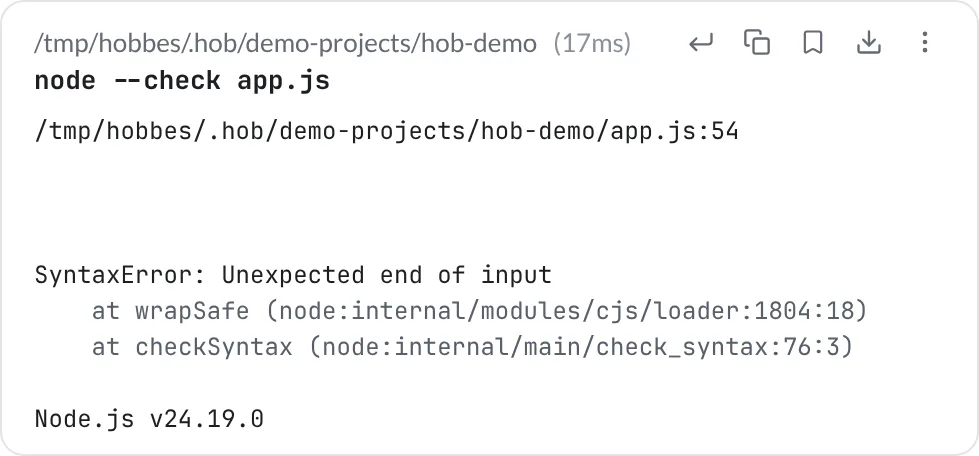
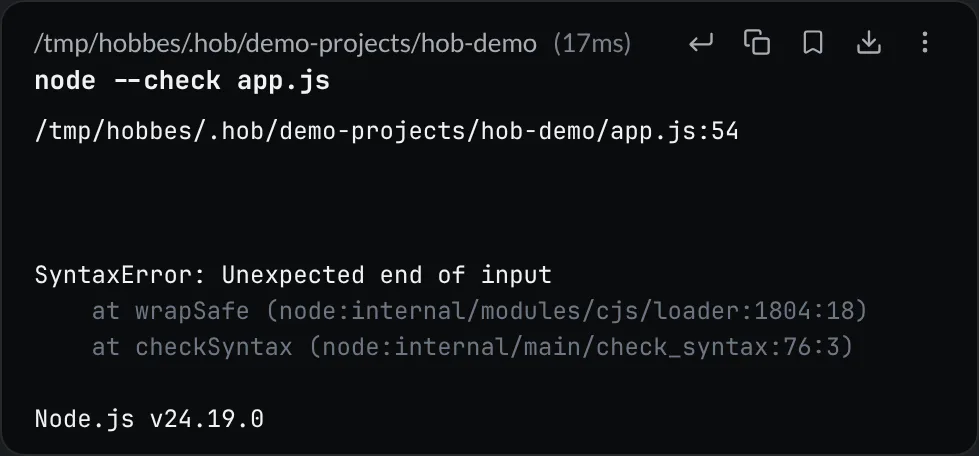
Use Find in pane to search this terminal's output. To find a result in a different or closed terminal, open History, choose Terminals, and search there. Command-history search serves a different purpose: finding the command you want to run again.
Reuse a command
Focus the terminal's input and open history search. Your current draft becomes the search text; with an empty draft, you can browse recent commands. Pressing Arrow Up from the start of the input also opens history.
The scope control lets you choose how far to look:
| Scope | Commands to search |
|---|---|
| this folder | Commands associated with this working directory. |
| this project | Commands from across the current project. |
| all history | Commands across projects and supported shell history. |
hob remembers your scope for the project. Suggestions consider recency and frequency; this terminal's own recent commands stay in a separate band nearest the input. Failed entries have a failure marker, so a command that needs fixing is easier to recognize before you reuse it.
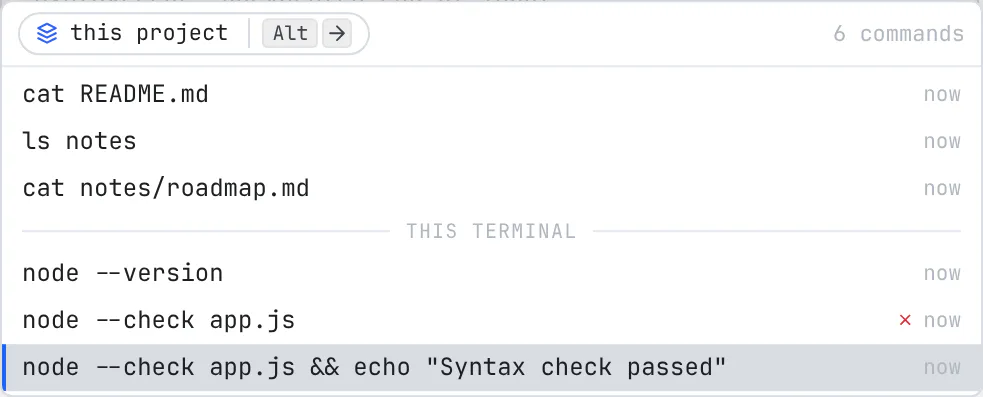
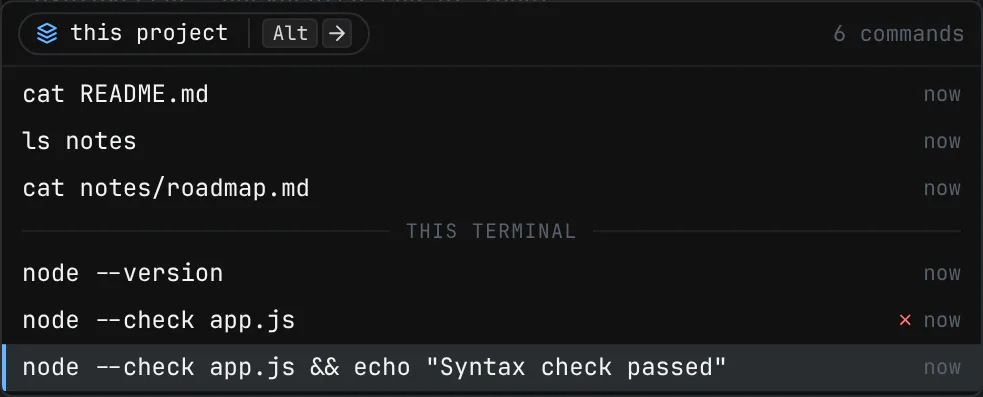
Select an entry with the arrow keys. Enter runs it; Tab puts it in the input for editing. Use Tab when you want to change a path or argument first. Click the scope control to widen or narrow the search. Escape closes it.
hob can read existing Bash and Zsh history, so familiar commands can appear in all history. It does not require a separate history service.
Keep useful results
A bookmark saves a command and its output as a place you can return to. Add a note such as “failure before the fix” or “baseline before refactor” so its purpose is clear later.
Use Save as automation when the command itself should become a repeatable part of the project. An automation can grow from that one check into a sequence of shell steps, agent work, and a report, with its own run history.
Use interactive terminal programs
Full-screen terminal programs use the terminal screen directly. You can also switch to direct terminal mode yourself, then use Exit direct terminal mode to return when appropriate. This keeps interactive tools available alongside the command-block workflow.
Shell support
Block and script modes depend on the shell's integration. hob shows a notice when a mode is unavailable or shell startup is still in progress. Direct terminal mode remains the place for programs that need the terminal screen.
For agents
Ask an agent to run a check in a visible terminal and explain the result. Through hob, it can open the terminal, run a command, wait for completion, and read the output. You can inspect the same command blocks, rerun a check, or bookmark the evidence. This is useful when the result should remain visible beyond the agent's summary.
Ask your agent
Agents use hob message --pane <terminal-id> --text <command> --wait to run a command,
or --watch to follow its output. The result identifies the command, and
hob pane view <terminal-id> --cmd <command-id> reads that command's output
later. Interactive programs do not always have streamable block output;
the CLI reports that limitation rather than inventing a result.